Postman is an API tool that we use to help interact/modify the CMS with. If you aren’t sure what an API endpoint is going to do, please ask in the #team-webdev channel on Slack.
If you haven’t already: install the Postman Client from here: https://www.getpostman.com/downloads/
Download the Postman collection
- Go here
- Click “Raw”
- Copy this link. It should looks something like: https://raw.githubusercontent.com/Banno/banno-cms/master/postman/Platform%20CMS.json?token=REDACTEDREDACTEDREDACTED
Import the collection
- Click “Collections”
- Click “Import From Link”
- Paste the link you copied in the “Download the Postman collection” step.
- Click “Import”
Setup a Postman environment for each site and CMS environment (Staging and/or Production)
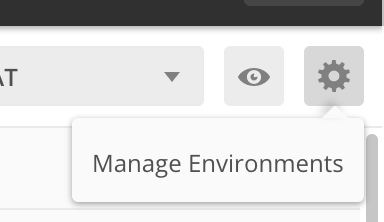
Click on the cog wheel in the upper-right to “Manage Environments”
Click “Add”
Fill out the following variables:
PLATFORM_DOMAINwill either behttps://platform.banno-staging.com(Staging) orhttps://banno.com(Prod)FI_DOMAINwill be set to whatever FI you’re using. Examples:demo.cms.banno-staging.comorusnybank.cms.banno-staging.com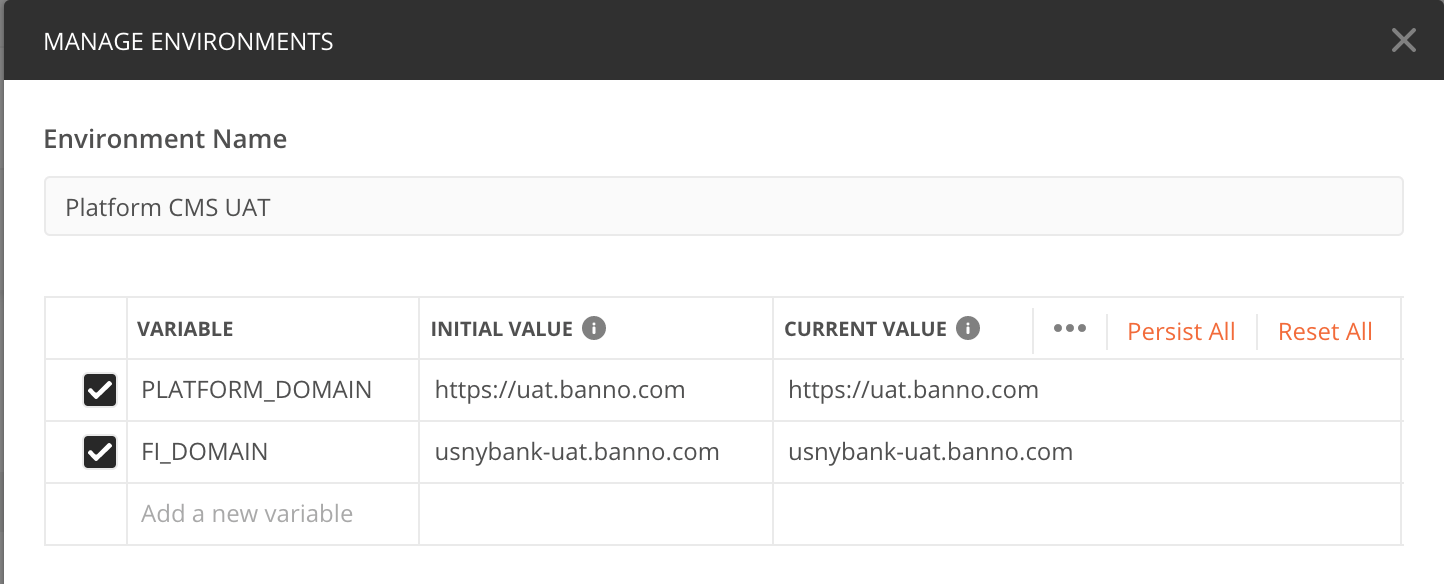
Click “Update”
Repeat the process for additional sites/environments.
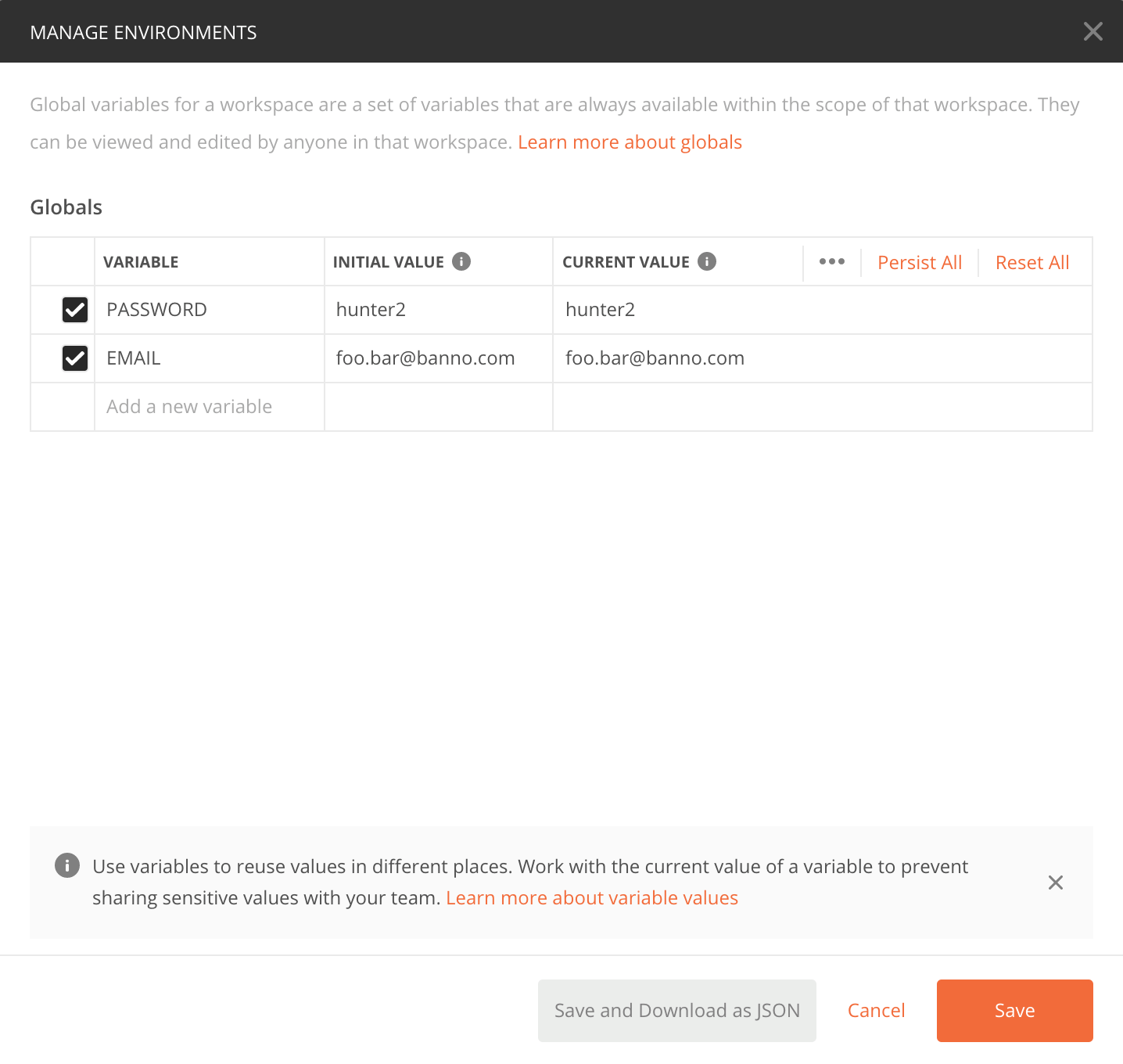
Add your Banno CMS LDAP credentials as global environment variables.
- Click the Cog wheel again (aka Manage Environments) –> Globals
- Add a new environment variable
EMAIL. Example:test.person@jackhenry.com - Add a new environment variable
PASSWORD. Example:hunter2 - Click “Save”
Get logged in
- Click on “Collections” on the top left
- Click on “Login”
- Click on “Login + 2fa verify (use this monthly)”
- Replace the code of
1234567with the code from your Authy app - Click send to log yourself in. This will remember your device for 1 month, so you won’t need to enter 2fa codes in for the next month. You will still be required to sign in every few hours.
- NOTE: This step will need to be repeated 1 time per month. Once for UAT and once for Production. When the “Login Only” command stops working, you will know it’s time to run the “Login + 2fa verify (use this monthly)” command again.
- Once you’ve done the above step, you can use the “Login Only (read description for instructions)” command to login to that envionment without providing a 2fa code.
You’re good to go! Use any of the commands like normal. When you switch to work on a different institution, make sure you update the
FI_DOMAINin your environment. You no longer need to login whenever you switch between Institutions, only update thatFI_DOMAINenvironment variable.
Using Postman Tests
- Create a new GET request
- Enter the path for the request URL (see each test below for specific ones)
- Click the Tests tab
- In the top box, paste the test script associated with each test below.
- Click the blue “Send” button
- In the Response box, you’ll see a “Test Results” tab. Click this tab and expand the box to see all results. See each test below for what each PASS/FAIL means.
Screenrecording of running a test script, this one shows Figma data
Searching for Figma Data in Content Areas
Request URL:
{{PLATFORM_DOMAIN}}/a/cms/api/site/{{FI_DOMAIN}}/page
Test Script:
const pages = pm.response.json(),
fullPage = [];

// Go through all the assets
for (var i = 0; pages.length > i; i++) {

    let contentAreas =[],
        problemAreas = [];
    // For each content area
    pages[i]['content'].forEach(function(content, index) {

        // Push each content area into the contentAreas array
        contentAreas.push(pages[i]['content'][index]['content']);

        if (pages[i]['content'][index]['content'].includes('(/figmeta)')) {
            problemAreas.push(pages[i]['content'][index]['name']);
        }

        // if we're on the last contentArea on this page
        if (pages[i]['content'].length == index+1) {
            fullPage.push([pages[i]['url'], contentAreas.toString(), problemAreas.toString()]);
            contentAreas = [];
            problemAreas = [];
        }
    });

    if (pages.length == i+1) {
        completeTest(fullPage);
    }
};


function completeTest(fullPage) {
    fullPage.forEach(function(page){

        let containsFigma = page[1].includes('(/figmeta)');

        pm.test( `/${page[0]} has Figma in content area: ${page[2]}`, () => {
            pm.expect(containsFigma).to.be.false;
        });
    });
}
Test Results:
- A PASS result for this test means the page listed does not contain Figma data.
- A FAIL means the page does have Figma data.
Tip: If you need help determining which Content Areas have the Figma data, you can click the “Body” tab in the Response box and search (Command F) for “figmeta”.
Bonus tip! This one can also be used to find literally anything! Just replace both instances of “(/figmeta)” with what you’re looking for!
Searching for Images Exceeding 300kb
Request URL:
{{PLATFORM_DOMAIN}}/a/cms/api/site/{{FI_DOMAIN}}/asset
Test Script:
const responseJson = pm.response.json(),
    largeImages = [],
    fullPage = [],
    requestURL = pm.variables.get("PLATFORM_DOMAIN") + "/a/cms/api/site/" + pm.variables.get("FI_DOMAIN") + "/page" ;

// Go through all the assets
for (var i = 0; responseJson.length > i; i++) {

    // if the filesize is larger than 300kb, add it to the "largeImages array"
    if ((responseJson[i].filesize > 300000) && !(responseJson[i].filename.match('.pdf'))) {
        largeImages.push([encodeURI(responseJson[i]['filename']),responseJson[i]['filesize']]);

    }

    // if we're on the last one, trigger the next function - pass on the largeImages filled array
    if ((i+1) == responseJson.length) {
        getPages(largeImages);
    }
};

// Get the pages and go through them all, then go through all their content areas and collect them in the contentAreas array
function getPages(largeImages){

    // GET all pages - requestURL pulls our variables

    pm.sendRequest(requestURL, function (err, response) {
        let pages = response.json();


        // For each page
        pages.forEach(function(e, i){
            let contentAreas =[];
            // For each content area
            pages[i]['content'].forEach(function(content, index) {

                // Push each content area into the contentAreas array
                contentAreas.push(pages[i]['content'][index]['content']);

                // if we're on the last contentArea on this page
                if (pages[i]['content'].length == index+1) {
                    fullPage.push([pages[i]['url'], contentAreas.toString()]);
                    contentAreas = [];
                }
            });

            if (pages.length == i+1) {
                findImages(fullPage);
            }
        });

    });
};

const imagesByPages = [];
function findImages(fullPage){

    fullPage.forEach(function(page, index) {

        let pageName = page[0];
        let imgArray = [];

        if (largeImages.length > 0) {
            largeImages.forEach(function(img, imgindex) {

                if (( (page[1].replace(/\(|\)/g, "")).match(img[0].replace(/\(|\)/g, "")))) {
                    imgArray.push(img[0]);
                } else {

                }

                if(largeImages.length == imgindex+1) {
                    imagesByPages.push([pageName, imgArray]);

                }

            })

        } else {
            imagesByPages.push([pageName, '0']);
        }


        if (fullPage.length === index+1) {
            completeTest(imagesByPages);
            imgArray =[];
            console.log(imagesByPages);
        }

    })
}

function completeTest(imagesByPages) {
    imagesByPages.forEach(function(page, index){

        if (page[1] === '0') {
            pm.test( `/${page[0]} has no images exceeding 300kb`, () => {
                pm.expect(page[1] == '0').to.be.true;
            });
        } else {
            pm.test( `/${page[0]} | ${page[1].join(',   ')}`, () => {
                pm.expect(page[1].length == 0).to.be.true;
            });
        }

    });
}
Test Results:
- A PASS result for this test means the page listed doesn’t have any images exceeding 300kb.
- A FAIL means the page does have at least one image exceeding 300kb.
Tip: You can change the 300000 to be any number. So if your client is okay with 300kb images, but needs to know about 1mb images, you’d change 300000 to 1000000.
Troubleshooting: You may run into an issue where the test won’t complete because of a typeerror with undefined json. It might be because of the file path for the image having a special character. As of this writing (October 21, 2025), a .replace was added to remove parenthesis in the match conditional.
Checking for Template Mismatch
This script will check if you have a mismatch between content areas in your developed site vs. what’s up on staging/prod.
- In your site’s development folder on iTerm, run
gulp && gulp make-everything. - In your text editor, go to your site’s folder > development > data > templates.json.
- Copy the entirety of that document, and paste it in between the
[]on line 1 of the postman script, and then run the test.
Request URL:
{{PLATFORM_DOMAIN}}/a/cms/api/site/{{FI_DOMAIN}}/template
Test Script:
// Enter the templates.json contents into the []
const comparedTemplates = [],
 templates = pm.response.json();
comparedTemplates.sort((a, b) => (a.templateId > b.templateId ? 1 : -1));
templates.sort((a, b) => (a.templateId > b.templateId ? 1 : -1));

function compare(a,b){
    return JSON.stringify(a) === JSON.stringify(b);
}
if (comparedTemplates.length === templates.length) {

    templates.forEach((template, index)=>{
        if (template["templateId"] === comparedTemplates[index]["templateId"]) {
              pm.test( `Template Content Areas Match: ${template["templateId"]}`, () => {
                pm.expect(compare(template["contentAreaNames"].sort(),comparedTemplates[index]["contentAreaNames"].sort())).to.be.true;
            });
        } else {
             pm.test( `Template Mismatch in Comparison: ${template["templateId"]} & ${comparedTemplates[index]["templateId"]}. Compare Templates>Get List to your templates.json to see which templates are misnamed or missing.`, () => {
                pm.expect((template["templateId"] === comparedTemplates[index]["templateId"])).to.be.true;
            });
        }

    });
} else {
    pm.test(`**Template length does not match.** Site templates: ${templates.length}. Templates.json templates: ${comparedTemplates.length}. Double check you have put your templates.json in the comparedTemplates brackets above, and that you have the same number of templates before trying again.`, ()=>{
        pm.expect(comparedTemplates.length === templates.length).to.be.true;
    })
}
Test Results:
- A PASS result for this test means each template listed matches in your JSON and on the site.
- A FAIL means the template listed doesn’t match your JSON, then you can manually figure out why and fix it.
Additional Results:
- If you don’t have the same number of templates in Postman compared to your templates.json, you’ll see just one FAIL. It will say:
- FAILED Template length does not match. Site templates: 0. Templates.json templates: 0. Double check you have put your templates.json in the comparedTemplates brackets above, and that you have the same number of templates before trying again.
- If you have the same number of templates, but they are not the same templates, you’ll see an error on several results saying:
- FAILED Template Mismatch in Comparison: templateId & templateId. Compare Templates>Get List to your templates.json to see which templates are misnamed or missing.
Side note: Showcases aren’t 100% accurate, and it’s because the make-everything gulp task doesn’t make the templates based on the actual template HTML. It makes the template JSON based on a default list, which may contain more templates than the HTML actually has. It will also not match if you’ve had to add content areas to the HTML. So use this test as a starting point on showcases, but keep in mind, it’ll likely mark them as failure when they actually pass. (Rebecca: I ran into that on a Showcase, but still, I only had to manually check 3 templates vs all of them; the rest matched).
List all Pages and their templates
This script will grab just the page title, url, and template so you don’t have to wade through all the otehr things the GET Pages request yields.
Request URL:
{{PLATFORM_DOMAIN}}/a/cms/api/site/{{FI_DOMAIN}}/page
Test Script:
const pages = pm.response.json(),
fullPage = [];

// Go through all the pages
for (var i = 0; pages.length > i; i++) {
    // Gather page title, url, and template
     fullPage.push([pages[i]['title'], pages[i]['url'], pages[i]['templateId']]);
    if (pages.length == i+1) {
        completeTest(fullPage);
    }
};


function completeTest(fullPage) {
    fullPage.forEach(function(page){
        let hasPages = fullPage.length > 0;
        pm.test( `Page: ${page[0]} || URL: /${page[1]} || Template: ${page[2]}`, () => {
            pm.expect(hasPages).to.be.true;
        });
    });
}
Test Results:
- Only “PASS”, and will list the results like: [PASS] Page: Page Title || URL: /page-url || Template: subpage