Name or Domain Name Change (What to Update)
The CWA is supposed to request (via Trello/Agg Board) and make sure that the URL and/or Name was change on the listing in the UAT CMS and Prod CMS. They will send us a jsource case to do the following:
Here is a checklist of what the dev needs to do:
A. Create the new UAT DNS.
- Take note of what the site’s current UAT URL is. Save it somewhere because you will need it later.
- Check in your browser and make sure that https://yournewfidomain-uat.banno.com is not already taken. If Chrome says “This site can’t be reached,” you should be good to proceed. If your UAT URL is already taken, you won’t be able to create yournewfidomain-uat.banno.com and that’s okay. It’s preferable to have the prod and UAT domains match, but sometimes it’s just not possible.
- To create your new UAT site, go to Keanu (in Slack) and enter this. Do not include .com or .bank or anything, just the FI name part of the domain):
createuatdns yournewfidomain
- If Keanu is successful, he will say
"Dns record created: https://yournewfidomain-uat.banno.com"
- You can double-check Keanu if you want to by going to https://dnschecker.org and putting in yournewfidomain-uat.banno.com
B. Make some changes to the site’s Github repo.
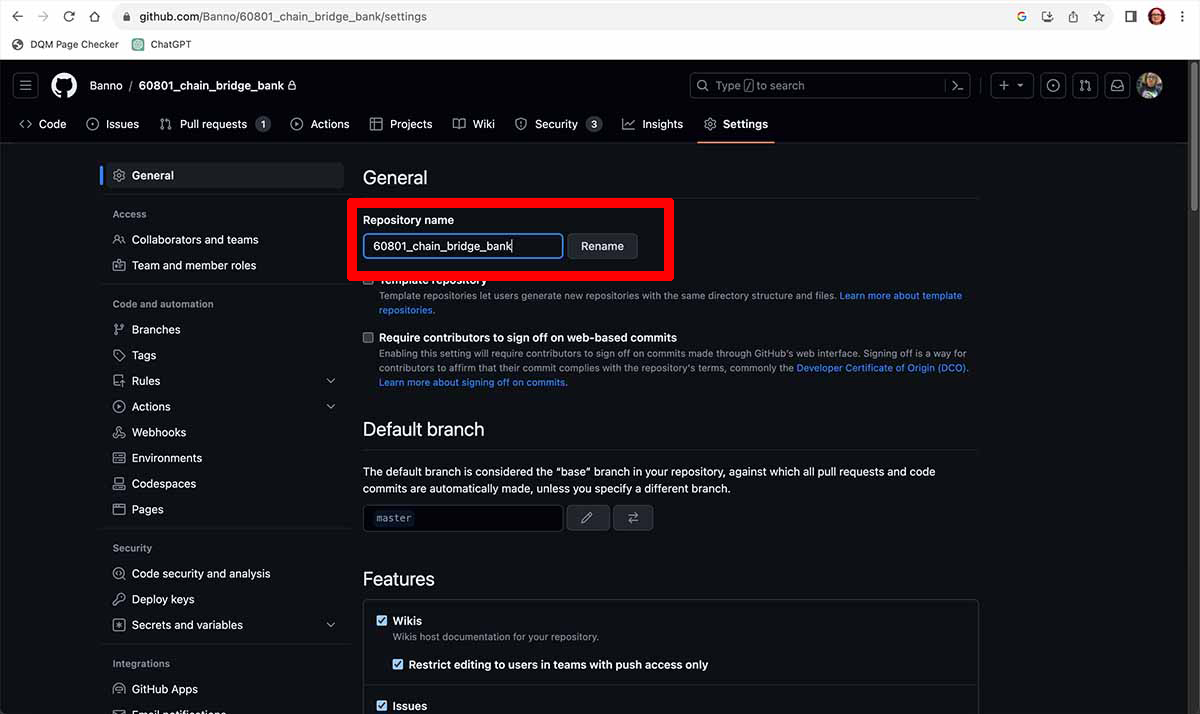
- Go to the FI’s repo on Github. Go to Settings (on the top) and change the repository name if the FI is changing their name/rebranding. View Screenshot
- Clone the repo and npm install.
- Go into the repo’s development folder on your machine > open package.json and change:
"zip": "yournewfidomain",
- Also change:
"scaffold": "yournewfidomain-make.json",
- Also change the “repository” Github repo address at the bottom if needed. No need to change anything else. It comes in handy sometimes to have a record of what the old prod and UAT URLs used to be, so you can just leave them as-is in the package.
- While in the development folder, find your youroldfidomain-make.json file and change its filename to yournewfidomain-make.json
- Go into development > deploy and delete everything inside of the deploy folder. (Do not delete the whole deploy folder, just its contents inside.)
- Run gulp/grunt
- Check and make sure the deploy zip name is now yournewfidomain.zip
- git add -A, git commit -m “change domain”, git push origin. No need to do a branch/PR. If another dev already has an existing PR, you should let them know that you made a change to the repo.
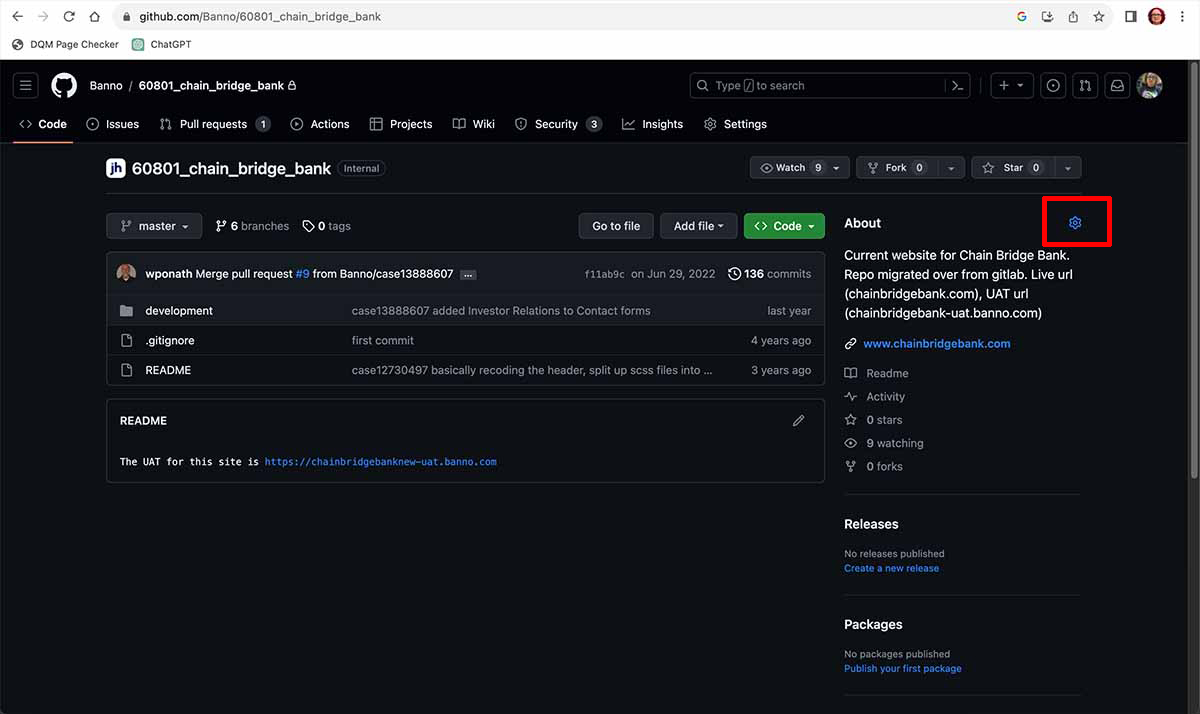
- Finally, back in the repo on Github, click the little gear icon next to About (on the left) and change the prod and UAT URLs. View Screenshot
C. Update the Institution on Postman/Change the UAT URL.
- Open up Postman and log into the UAT environment (using Authy).
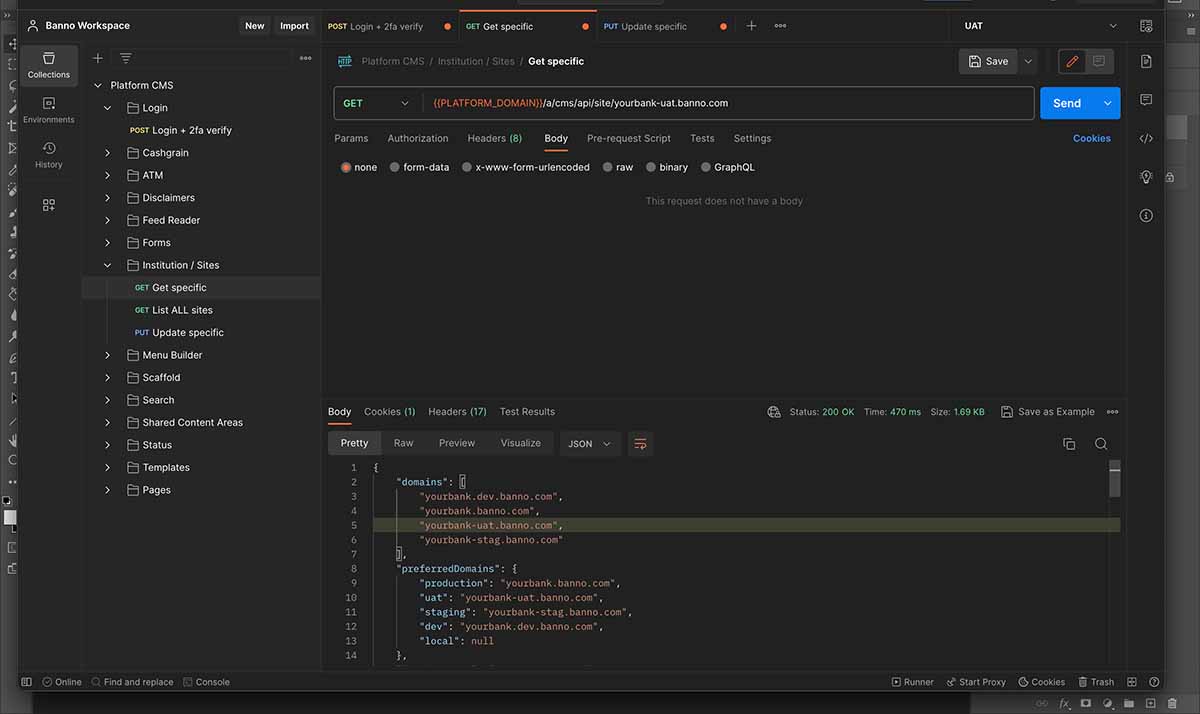
- In the list of Collections on the left, expand Institution/Sites > Get specific
- Put in your OLD/current UAT URL (youroldfidomain-uat.banno.com) at the top in place of {{FI_DOMAIN}} and click Send.
- Copy everything that appears from the Body, on the bottom. View Screenshot
- Then do Institution/Sites > Update specific. Put in your OLD/current UAT URL (youroldfidomain-uat.banno.com) at the top in place of {{FI_DOMAIN}}.
- Paste everything you just copied into the Body, at the top.
- Change ONLY the one part of each of the 8 domains at the top. View Screenshot
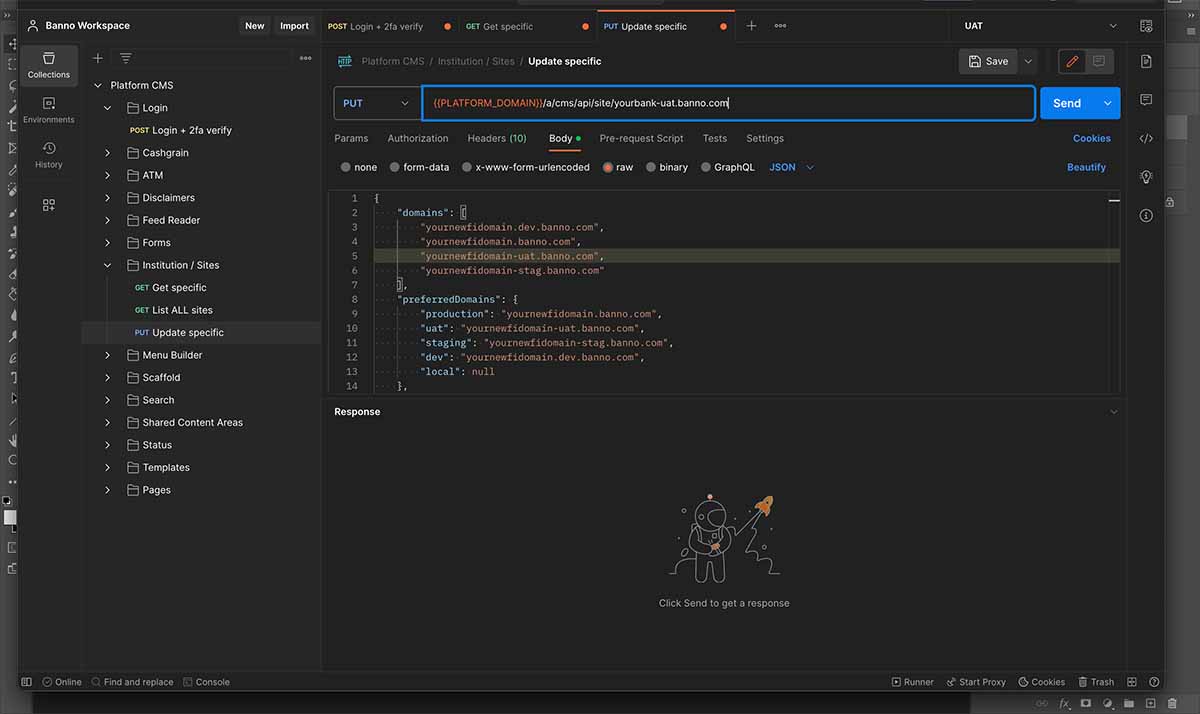
"domains": [
"yournewfidomain.dev.banno.com",
"yournewfidomain.banno.com",
"yournewfidomain-uat.banno.com",
"yournewfidomain-stag.banno.com"
],
"preferredDomains": {
"production": "yournewfidomain.banno.com",
"uat": "yournewfidomain-uat.banno.com",
"staging": "yournewfidomain-stag.banno.com",
"dev": "yournewfidomain.dev.banno.com",
- Scroll down to the bottom of your Institution code and make sure that “allowReScaffold”: is set to false. If it is set to true, change it to false. Just like it is, no quotes. (This step is optional. It’s just something I do for every site. Sometimes that flag is overlooked on the pre-live side. We don’t want anyone to be able to erase someone’s whole UAT site!)
- Then hit Send. If successful, your code will show up in the bottom part of Body.
- Now go to https://yournewfidomain-uat.banno.com in your browser and refresh. You should see everything has been copied over to your UAT site. (Note: It might take a little while for some stuff to copy over, like random images. It should be okay, just give it a little time.)
D. Change the microsite.
- Clone the microsites repo. If you have already cloned it, do a git checkout master / git pull to refresh it.
- Open Terminal and create a new branch. You can name it what we usually name it, like case14447593.
- Find your old/current domain’s folder in the repo and rename it to the new domain. Example: www.yournewfidomain.com, www.yournewfidomain.bank
- Push your branch (git add -A, git commit -m “microsite changes for domain.com”, git push origin), then go to https://github.com/Banno/microsites, do a new PR, and hit the green button to merge it.
- Go to Keanu and do push-microsites
- Go to https://www.yournewfidomain.com/temporarilyunavailable and make sure your microsite is showing correctly.