About Monitor
Banno Monitor is a service we offer for our Web Solutions clients. Monitor scans clients’ sites for any changes that they may need to be made aware of. While we scan all our sites on our servers for our own security, Monitor allows clients’ access to track this information themselves. Monitor scans on three fronts: it tracks their SSL certificate, their DNS and domain expiration, and their site content. If it sees anything off, it will alert the client, allowing them to review the alert and either acknowledge it (essentially turning off the alert) or they can reach out to us to investigate alerts further. In most of these cases, the changes that trigger alerts are legitimate and can be acknowledged.
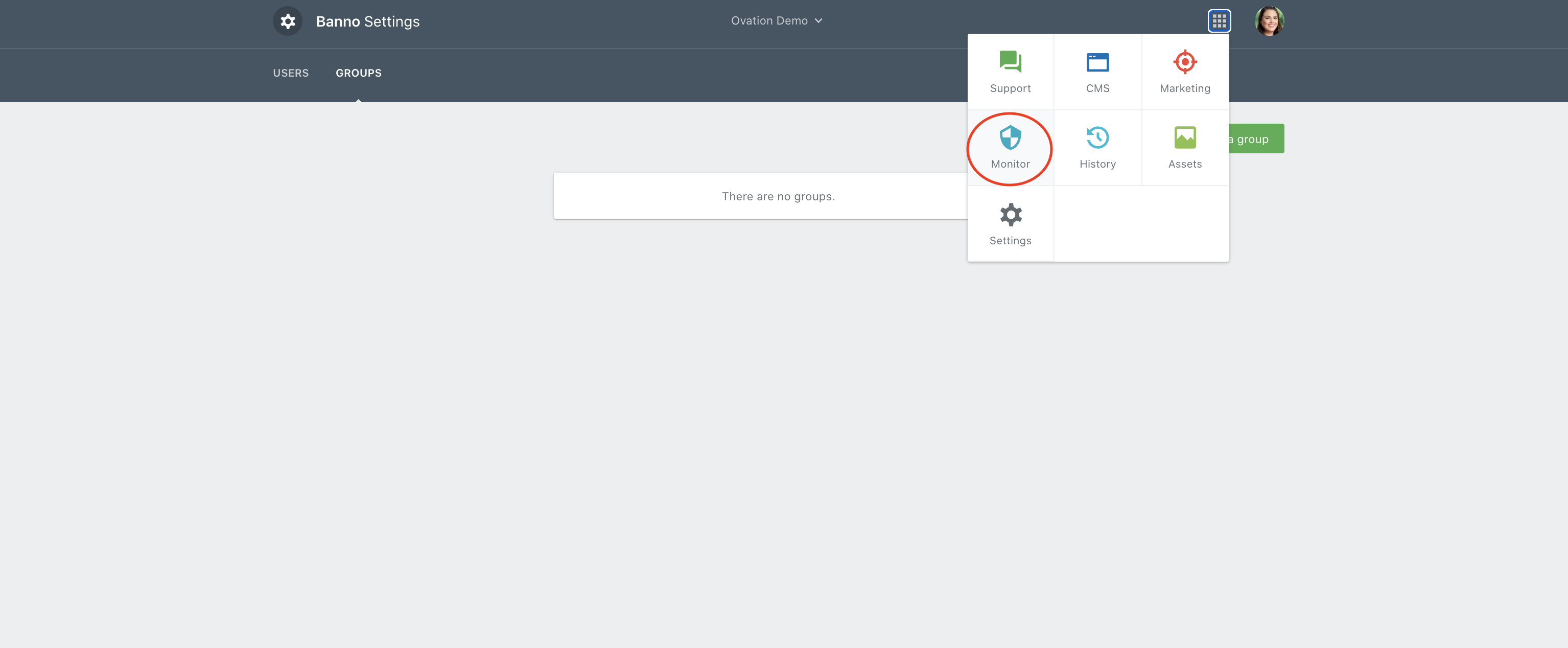
Monitor can be accessed through the Banno Portal, like the CMS and Marketing. As a product, it can be accessed in the grid icon in the top right corner of the Banno site, upon login. Its icon is a shield.
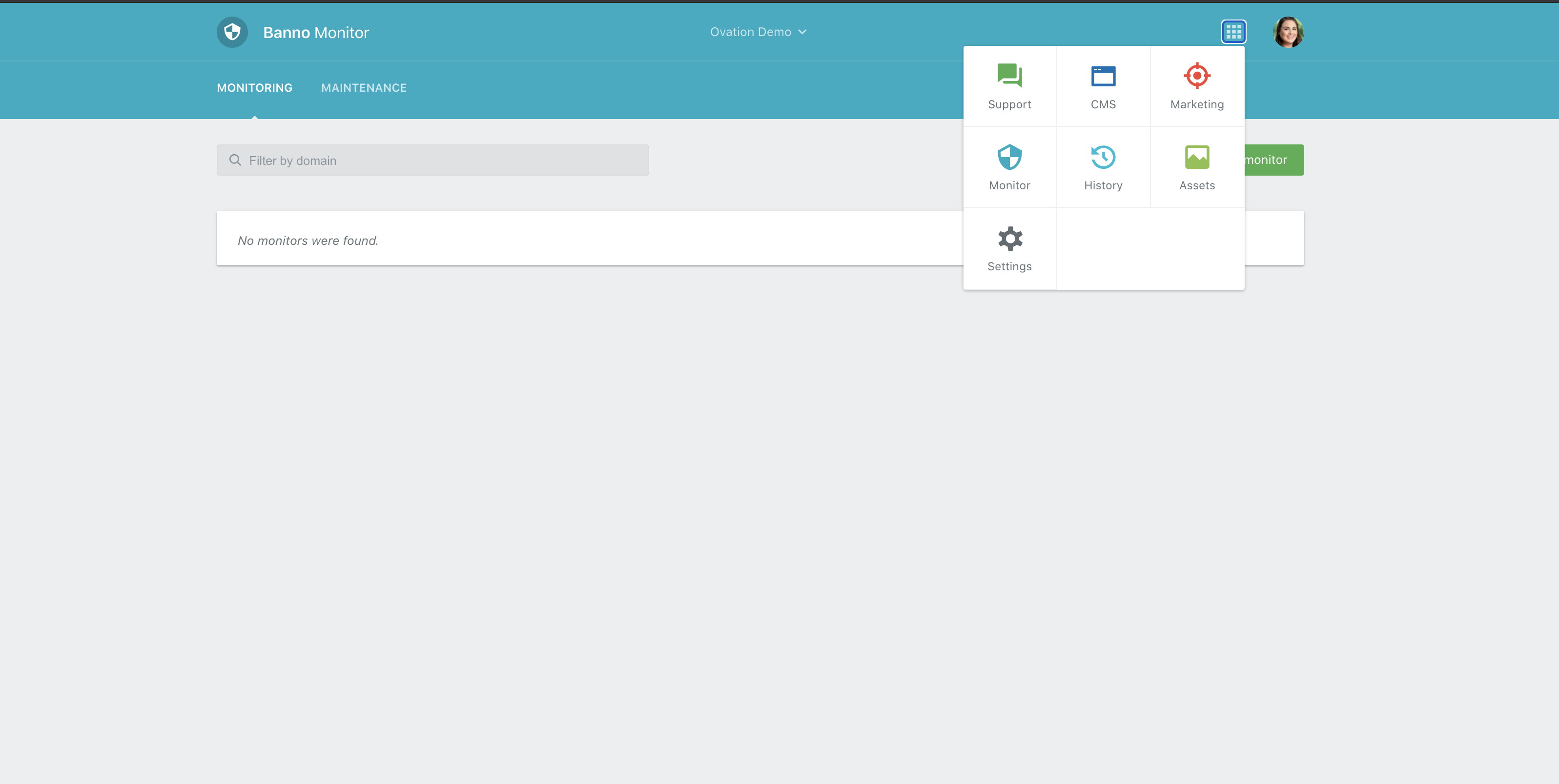
Monitor Setup
Monitor is part of clients’ contracts and is typically sold with a new website and set up during the development process. In the past, we have sold it as a separate product, but, as a rule, Banno Monitor clients have a website with our team.
Requesting an Addendum and adding the Product in Banno
Occasionally, Monitor will be purchased on its own, post-launch, and need to be set up by the client’s CWA. If a client requests Monitor to be set up on an already live site, the CWA will need to follow the below procedure:
- Reach out to Emily Gershbein to draw up an addendum for the client’s signature.
- Once signed, you can create a case in the Trello Agg board requesting the new client be set up.
Once the addendum is signed and the product added to the client’s Banno profile, you can now set up monitors for the site.
Creating New Group and Users
To set up monitors, you will follow the below instructions.
- Login to the Banno site, and select your institution.
- You can select your institution you would like to update with the drop down at the top by searching by either the FI name or primary URL.
- You will then need to create a new FI Group for FI users to be a part of. This will allow them to view alerts, as well as receive email notifications when an alert triggers.
- Go to “Settings” under the grid menu
- Select the “Groups” tab, then select “Create a Group”
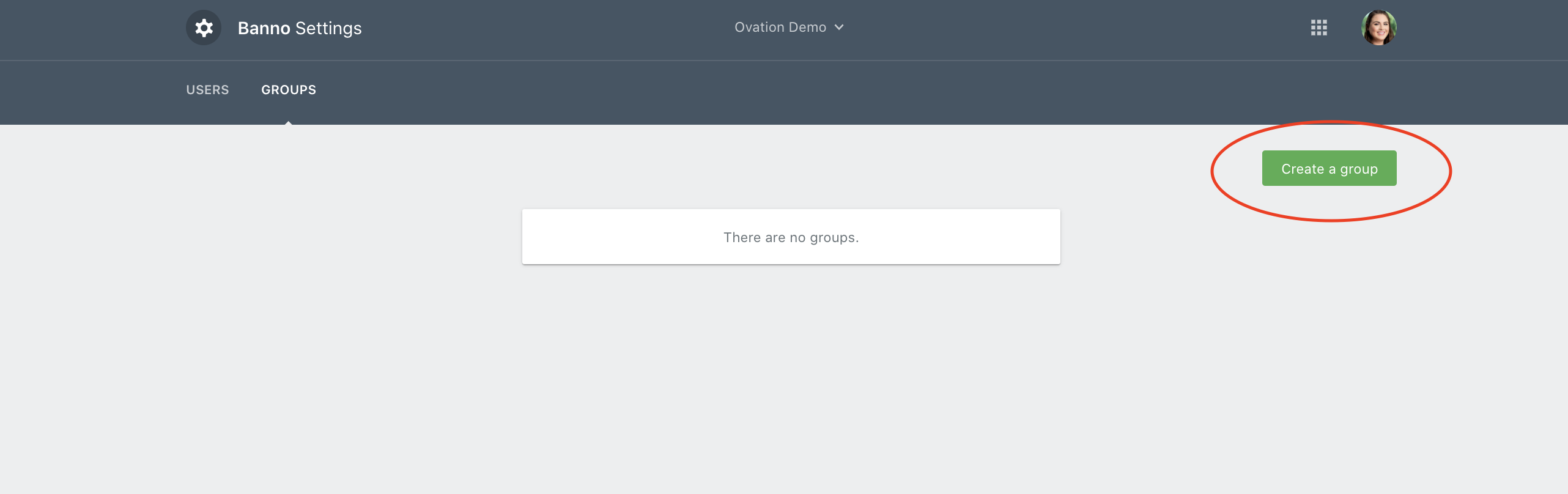
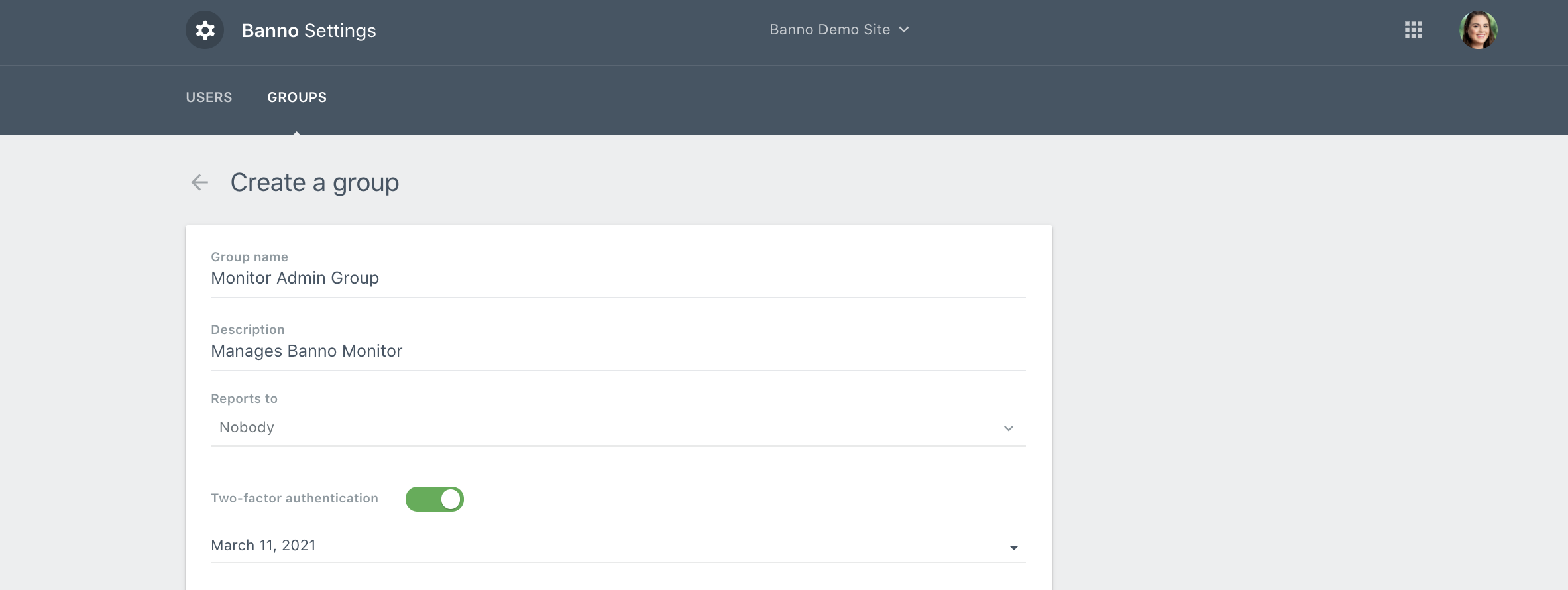
- Group Name: Bank Name + Admin
- Description: Jsource ID + Bank Name
- Check the following box
- Monitor -> “Manage Monitors”

- Monitor -> “Manage Monitors”
- If the client has no users set up in Banno (e.g. if they are PWEB customers), you will need to create users for them, per the standard protocol and assign them to the new group you created.
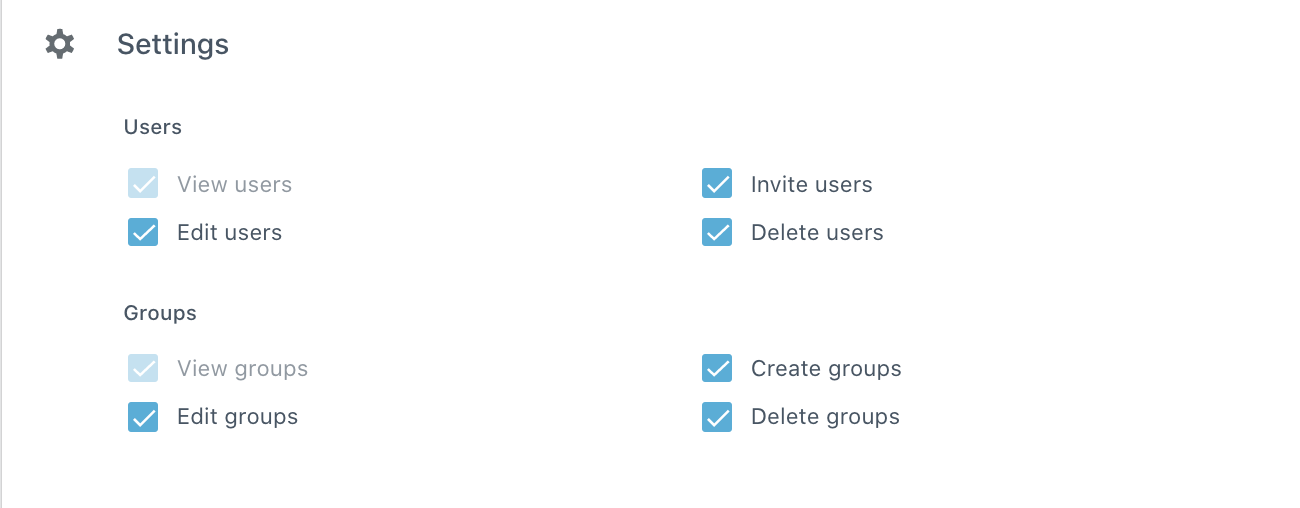
- You will also need to and set up the group you just created to be able to add users and groups:
Adding New Monitors
- First you will select the grid icon and switch to Monitor:
- You will set up multiple monitors for each client.
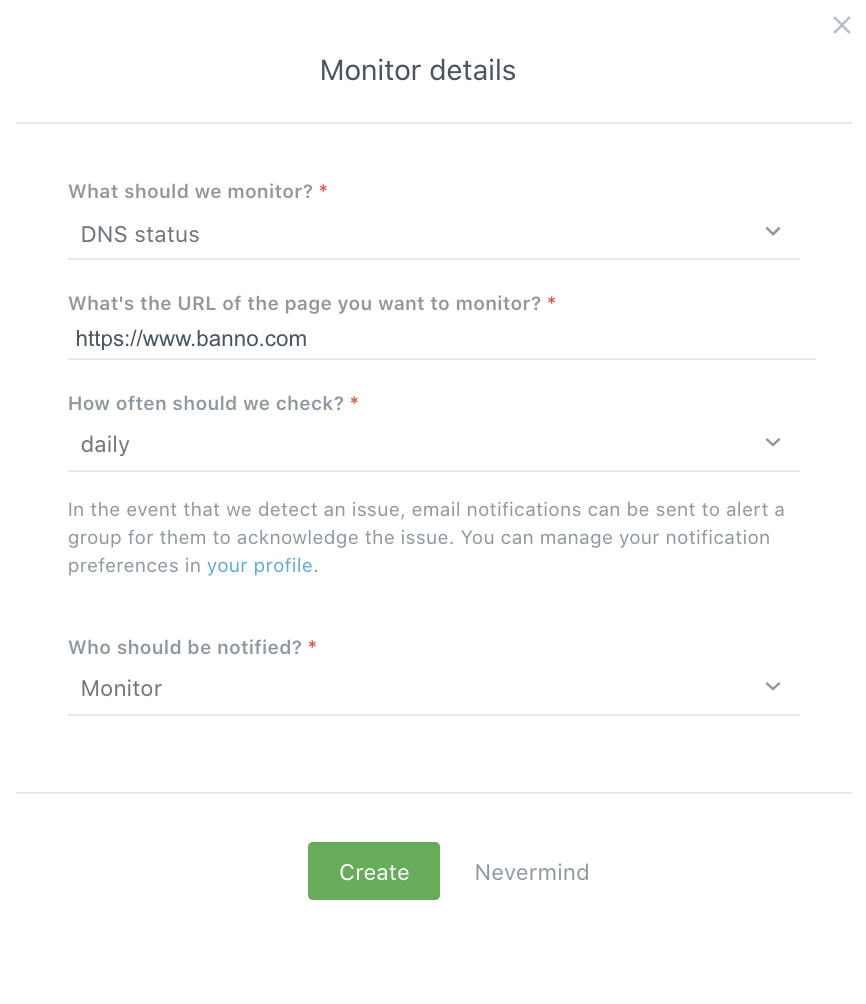
New DNS Status
- Then select “Setup new monitor.”
- And set the monitor up as follows:
- What should be monitor? DNS Status.
- What’s the URL of the page you want to monitor? The full URL of the site (this might be auto-populated).
- How often should we check? Daily.
- Who should be notified? The group you just created.
New SSL Certificate Status
- Select “Setup New Monitor”
- And Select “Setup New Monitor”
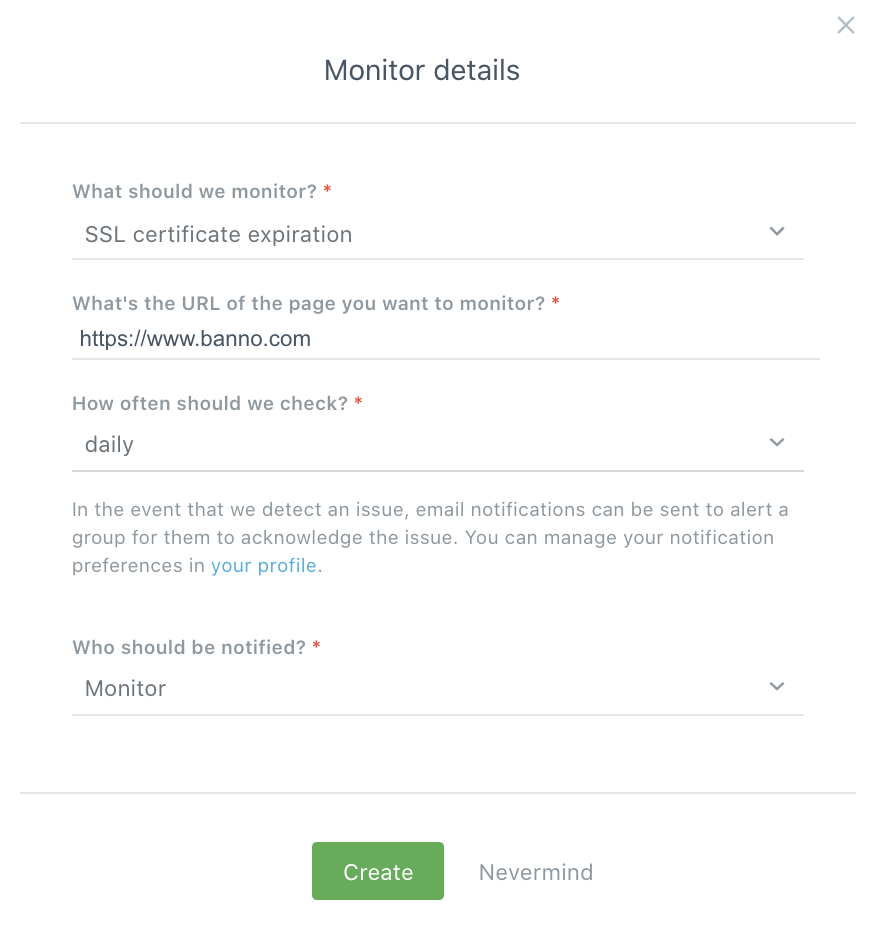
- What should be monitor? SSL certificate expiration.
- What’s the URL of the page you want to monitor? The full URL of the site (this might be auto-populated).
- How often should we check? Daily.
- Who should be notified? The group you just created.
- Please note: if the client’s site is not an SSL site, this step can be skipped.
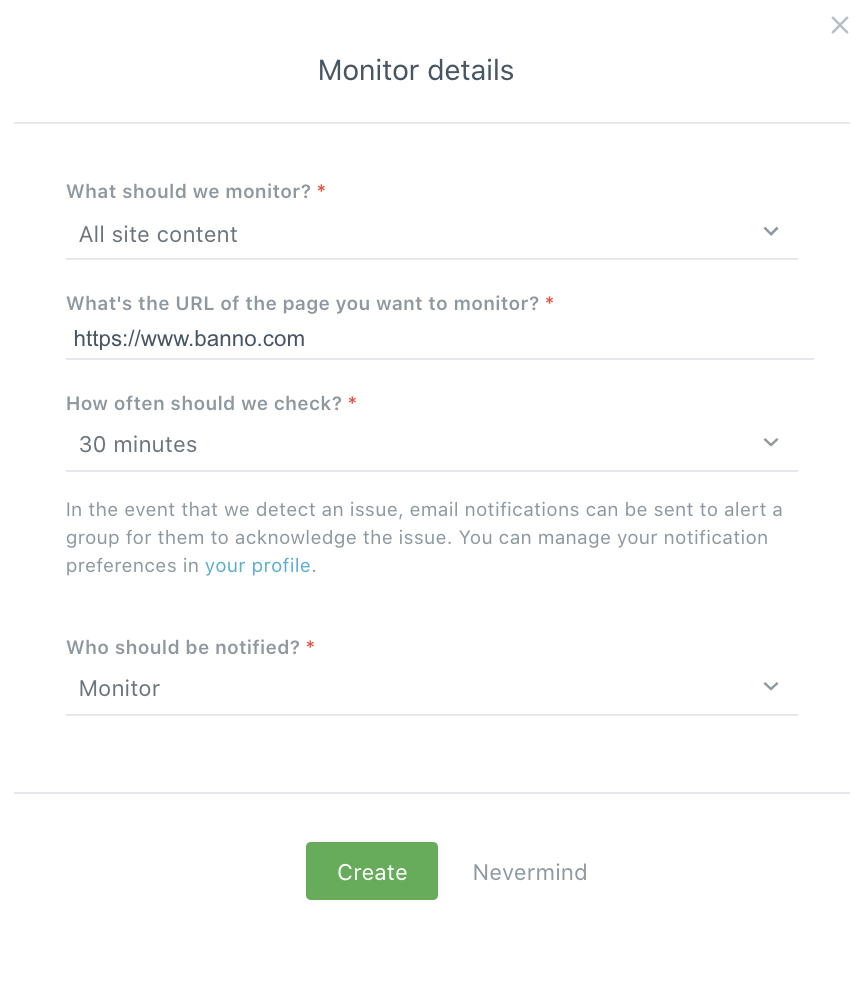
Full Site Scan (Banno Clients)
- Select “Setup New Monitor”
- And set the monitor up as follows:
- What should be monitor? All site content.
- What page you want to monitor? The full URL of the site.
- How often should we check? 30 minutes.
- o Who should be notified? The group you just created.
Setup Compare Site Content (PWEB Clients)
- Select “Setup New Monitor”
- And set the monitor up as follows:
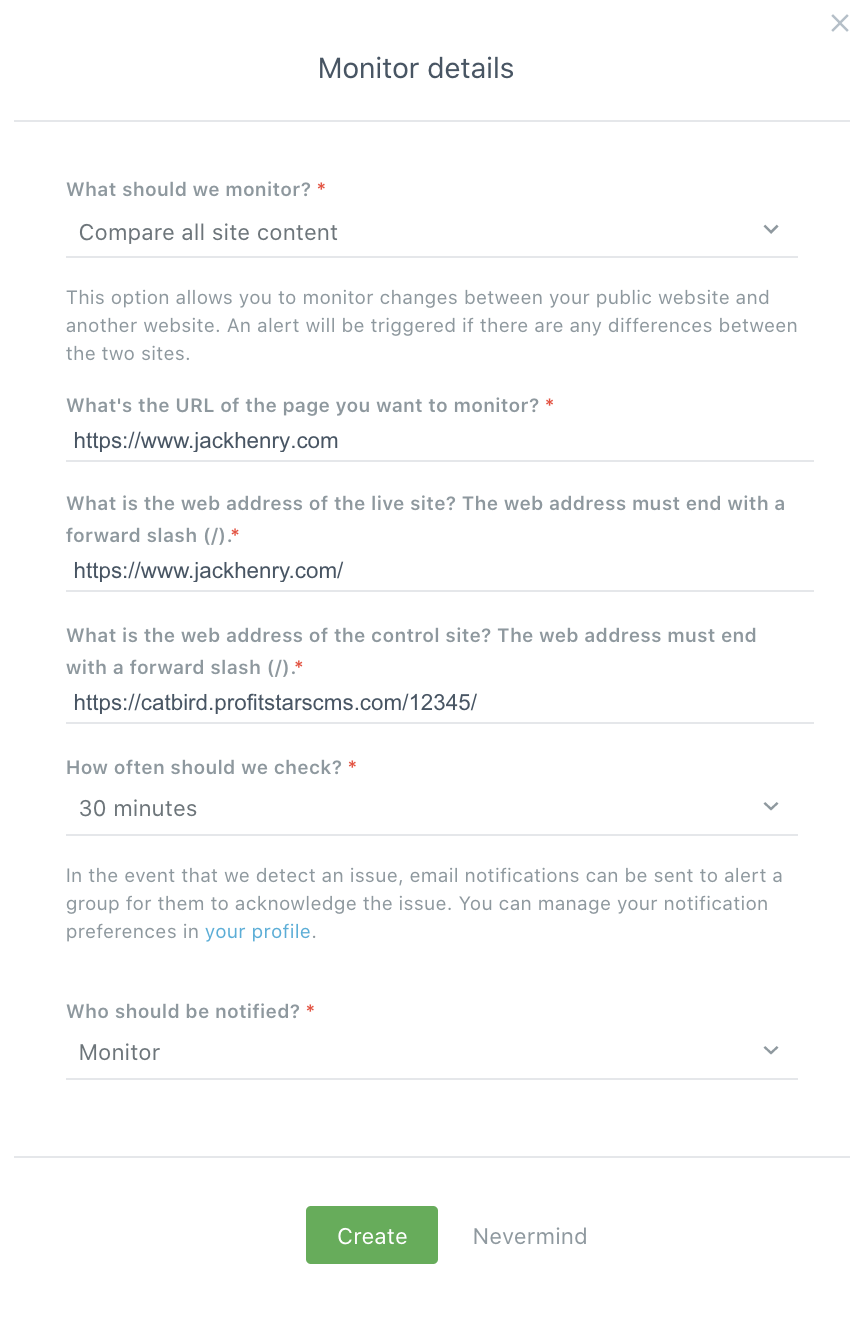
- What should be monitor? Compare all site content.
- What page you want to monitor? The full URL of the site.
- What is the web address of the live site? This will be the full URL of the live site, again, as above.
- What is the web address of the control site? https://catbird.profitstarscms.com/12345/
- The number is the FI #.
- Be sure to enter this address in your browser to confirm it works.
- How often should we check? 30 minutes.
- Who should be notified? The group you just created.
- Please note: You do need the “/” at the end of the URLs when adding the “Compare all site content” monitor.
Reviewing and Acknowledging Alerts
Alerts will show up under the “Monitoring” tab.
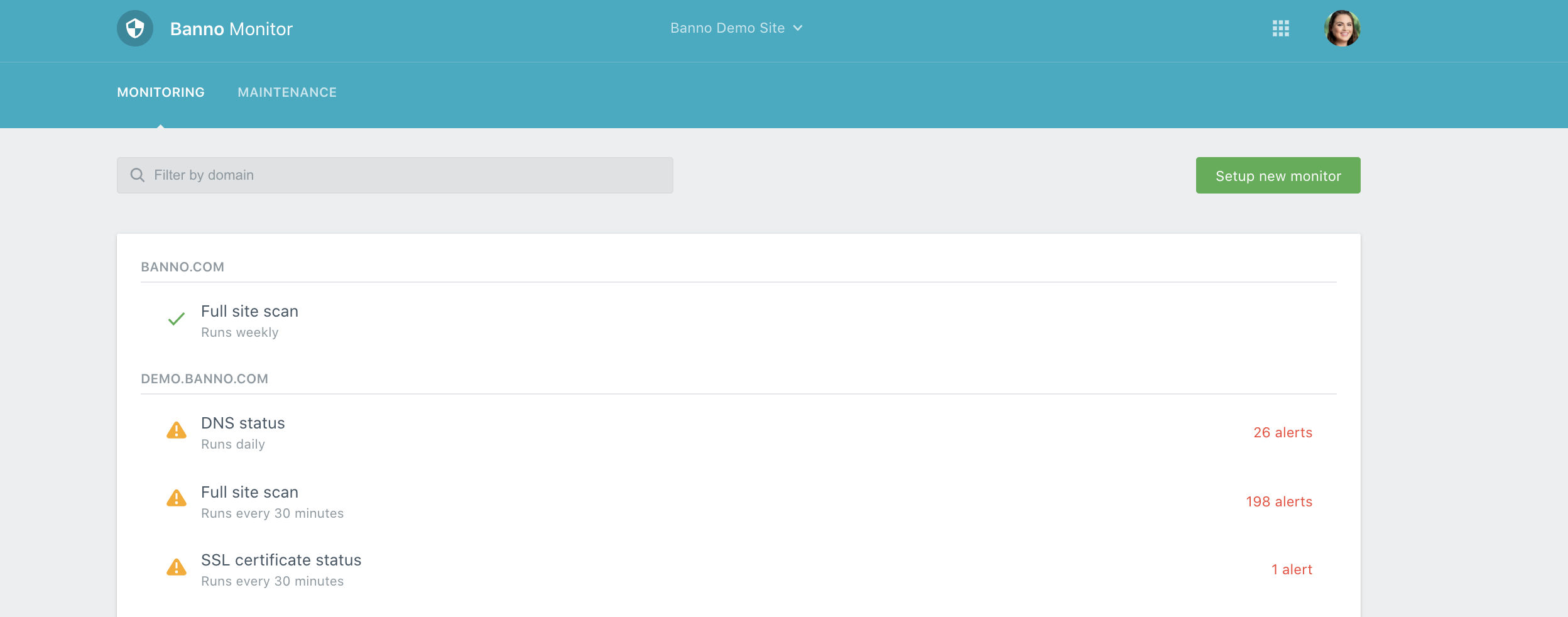
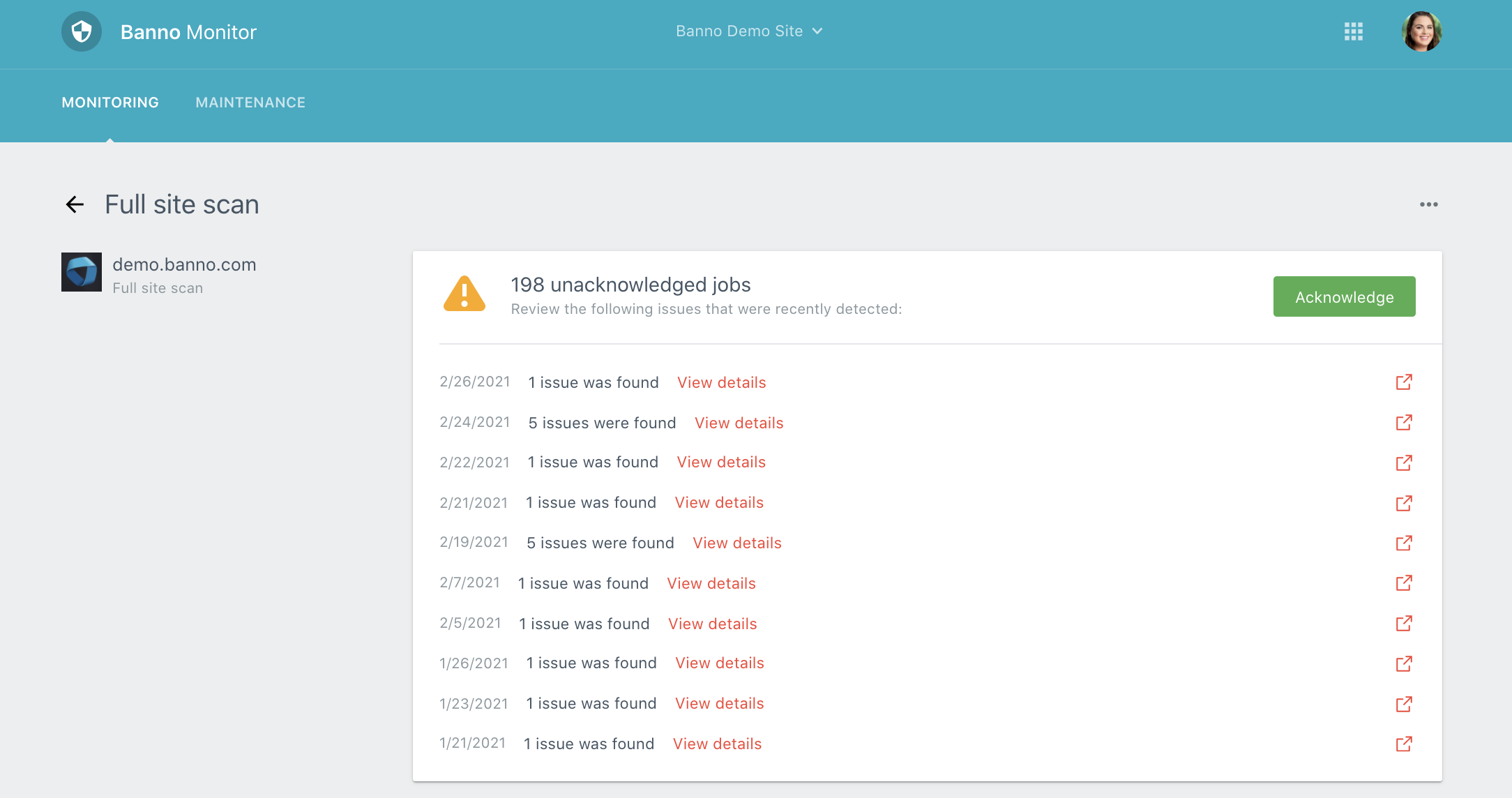
If a change that triggered an alert is deemed legitimate, the alert can be acknowledged, to remediate the alert and cease all email notifications. Alerts can be acknowledged either individually or as a group. To acknowledge an alert, click on the alert type (DNS status, SSL certificate status, or Full site scan).
There you will find all unacknowledged alerts. At this point, you can click “acknowledge” to remediate them all at once:
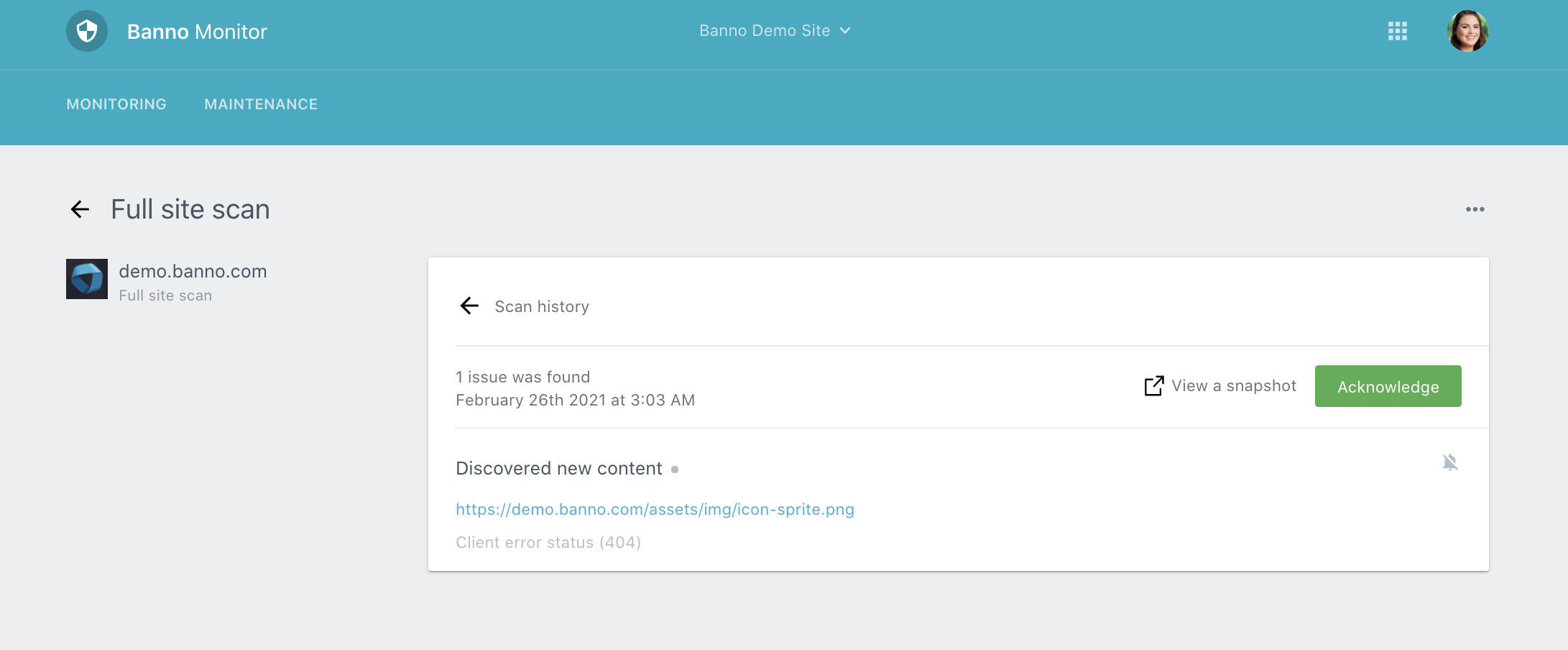
Or, you can click on the individual alerts by clicking “View details.” There you can view the specifics as to what triggered the alert and acknowledge that alert individually:
Alerts Triggered by Maintenance
During maintenance windows, the Banno team makes sure to make changes and complete testing in a way that won’t trigger alerts. However, sometimes this happens anyway, and alerts are triggered. If this is the case, many of our clients will receive the same alert (often under “Full Site Scan”).
If you suspect that an alert is being triggered by a maintenance event, you can cross-reference this with the Maintenance Calendar (below). If there was a recent maintenance that lines up with the alert, you can check in our Slack channel if anyone else has had reports from other clients.
Troubleshooting Common Alerts
Below are some common alerts clients may receive and require an explanation.
SSL certificate status -> SSL Certificate for www.bankdomain.com changed
This is alerting the client that there is a new SSL certificate in place for the site. Typically, you will see this after we have renewed the SSL for the site each year.
DNS status -> DNS expires in ## days
This alert is confusingly worded. This is alerting the client that their domain is expiring in so many days. Monitor will alert them starting at 60 days out. If they host their domain with us, then we will handle the renewal process. If they host their domain with a third-party provider, they will need to handle this themselves.
DNS status -> DNS for www.bankdomain.com changed
This is alerting the client that there has been an update in their DNS records. Typically, this will occur after a legitimate change to their DNS. If the client doesn’t recognize this change, we will need to look back on any updates. If we host their DNS, the CWA will need to reach out to the Web Solutions or Jack Henry DNS teams (depending on nameservers) to see if we made this change. If the client hosts with a third party, they’ll need to reach out to that provider.
Full site scan -> Discovered New Content – Client error status (404)
This is the alert is also confusingly worded. It is received if there is a broken link on the client’s site. This can be frustrating to investigate, as the alert notifies the client as to the bad URL of the link (which, by definition, does not resolve anywhere) rather than the location of the bad link on the site.
To find the location of the dead link, it can sometimes be helpful to find out what changes were made to the site around the time of the first alert. You can also use third party scan sites like the two below:
If you are still having issues finding the dead link, you can reach out on the Banno Monitor channel to assist.
Full site scan -> Discovered New Content – Script changed
This alert is notifying the client that a script has been updated on the site. Since clients are limited in access to updating scripts on the site, this often comes up after backend maintenance, (if there was recent maintenance, it should show on the calendar tab, detail in the below section).
With this alert, there is typically an option to “view difference” where you can see what specific code was updated on the site.
Maintenance Calendar
There is a second tab, labeled “Maintenance.” This is a calendar showing all the scheduled maintenance in Banno.
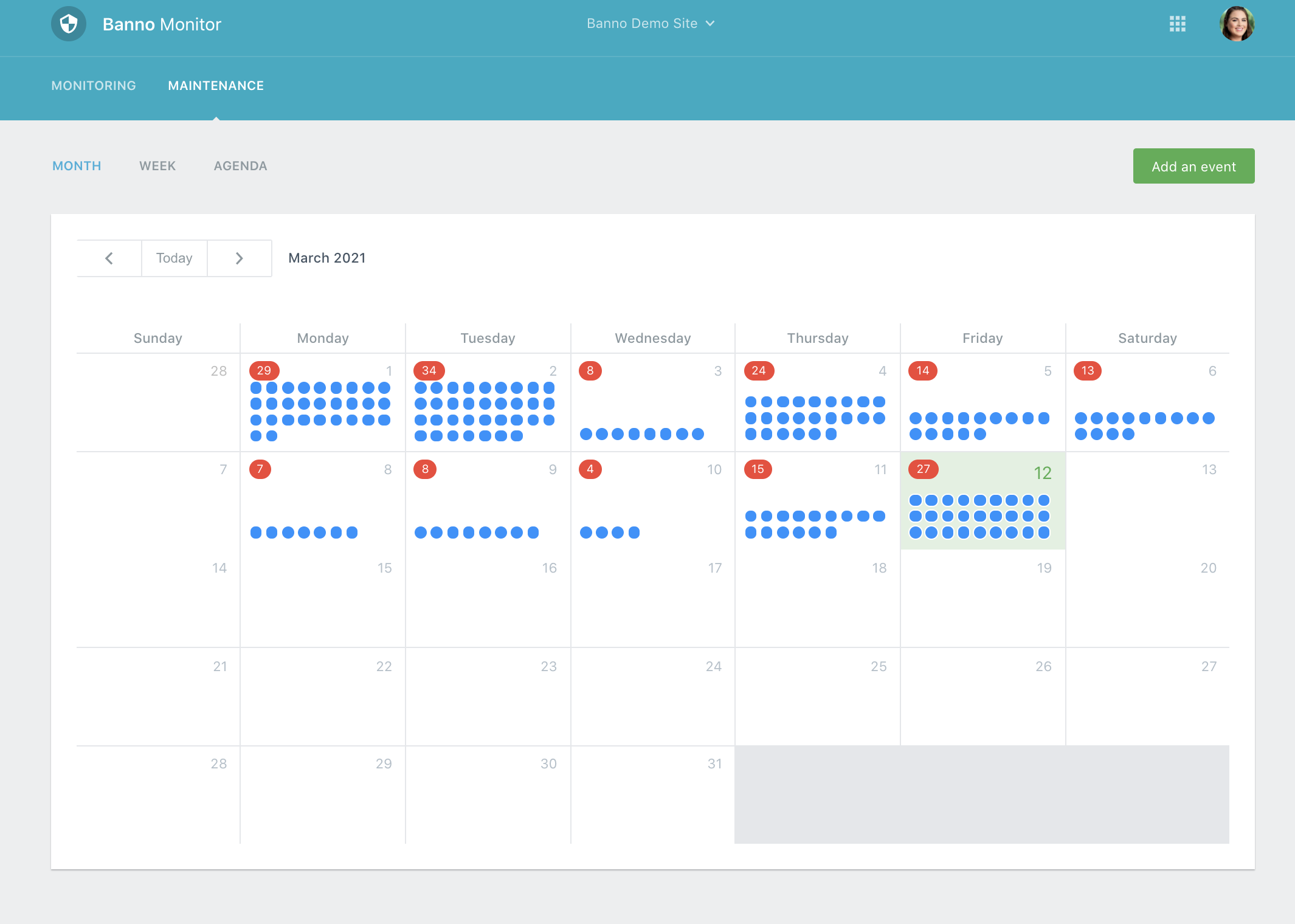
This is a good resource if you or the client wants to confirm that an unrecognized content change was legitimate, due to an update on our end.
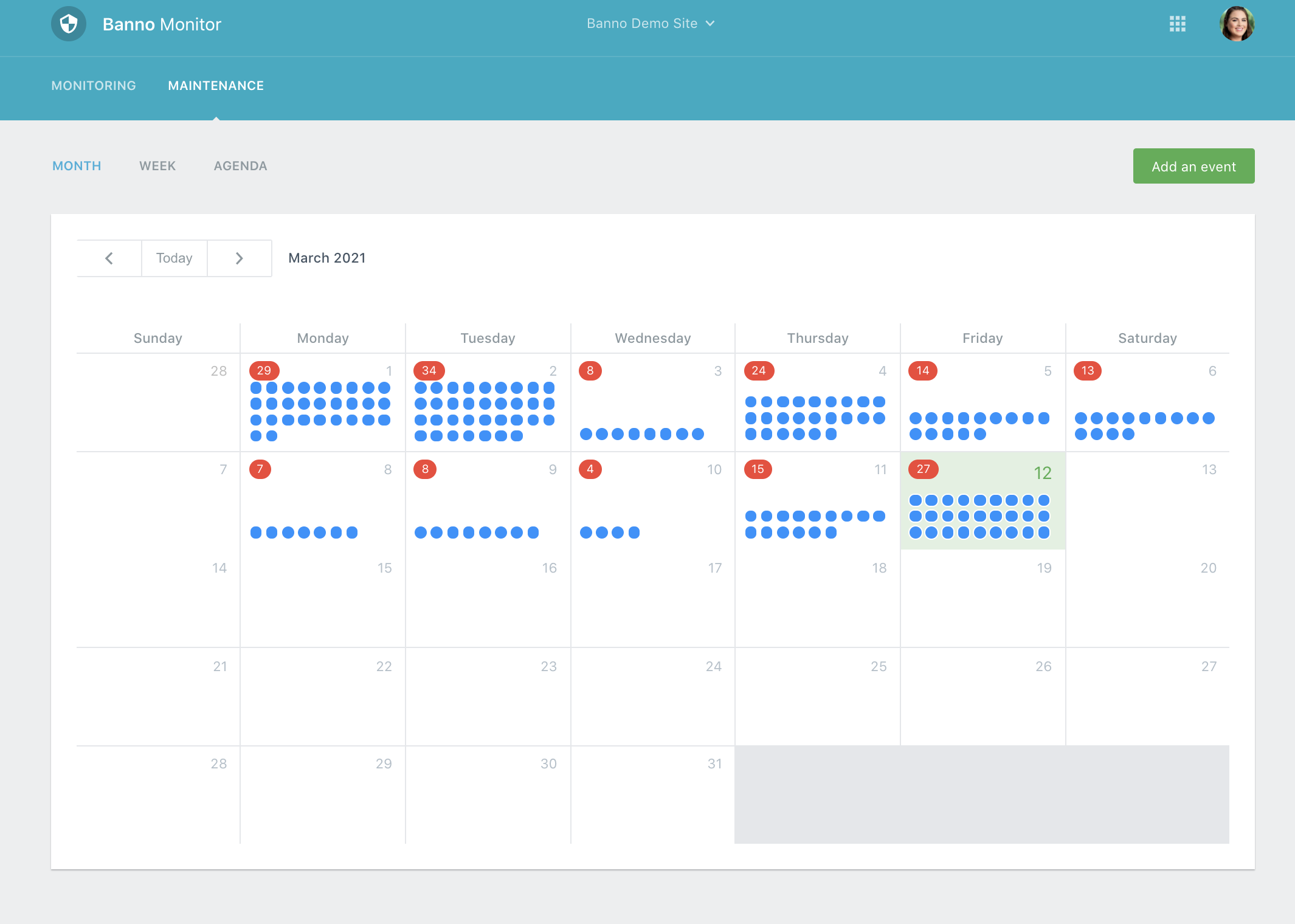
You can opt between viewing by month:
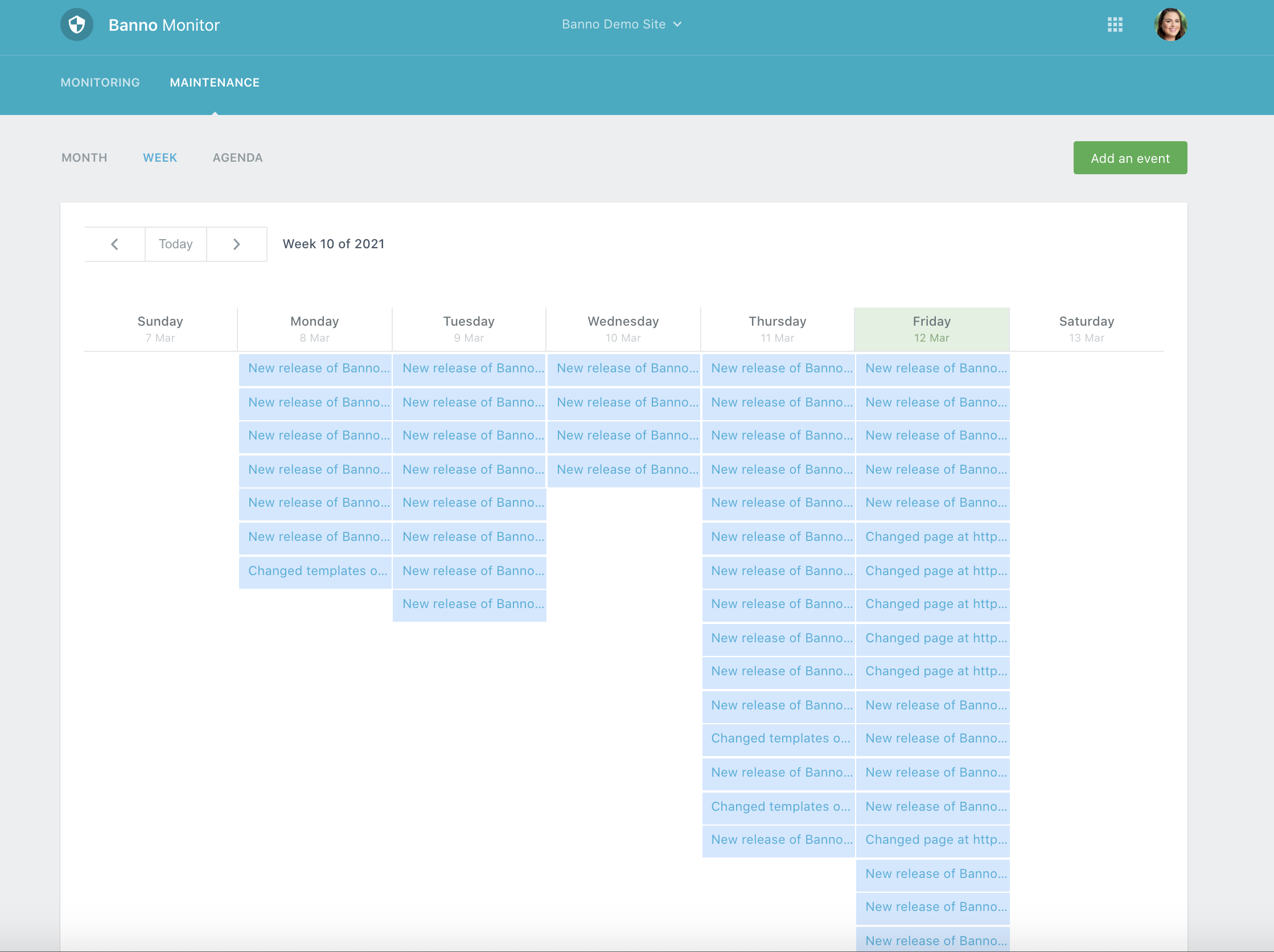
Or by week:
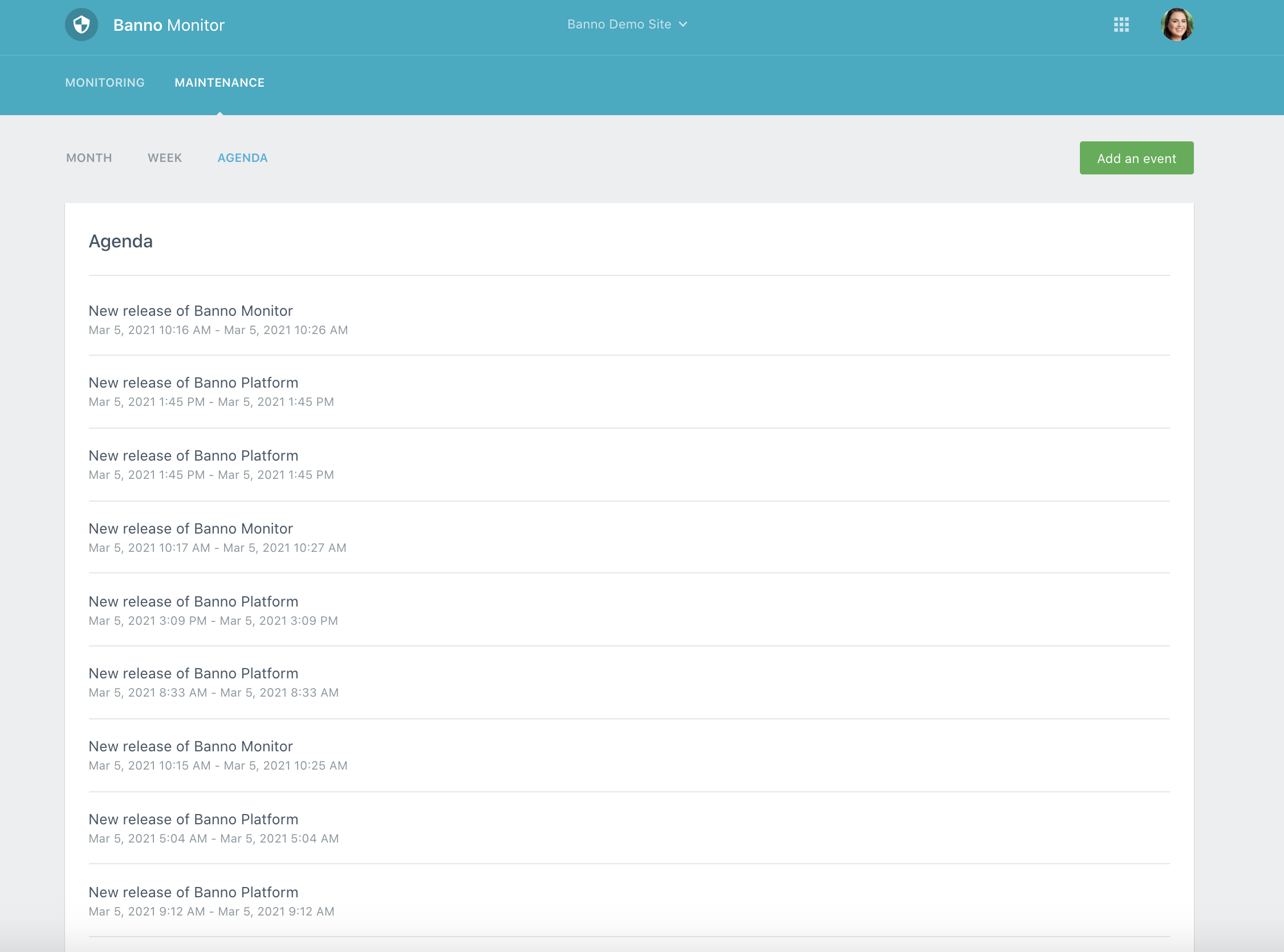
Or by agenda (meaning what the update was for):
Banno Monitor Digest
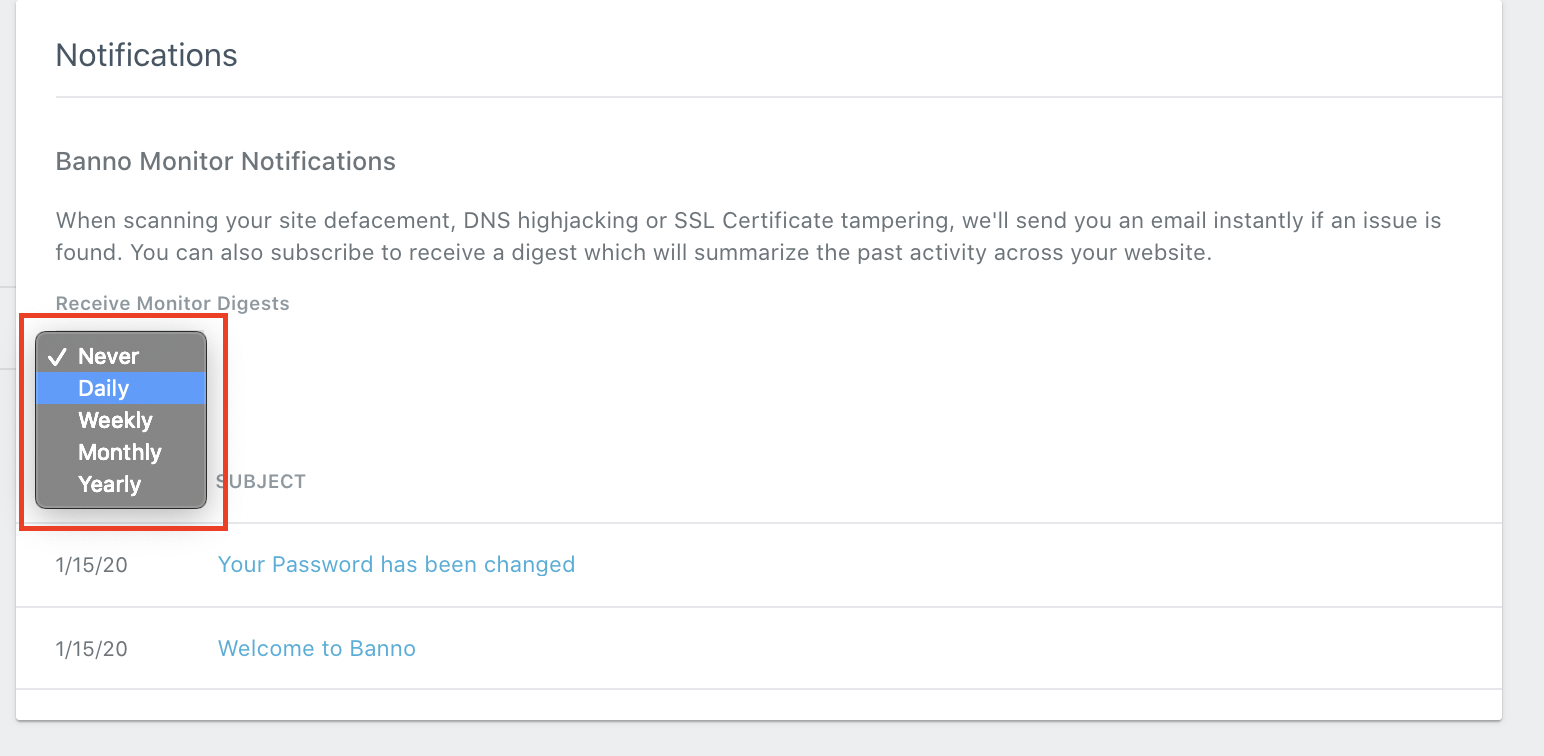
Clients can opt to receive a regular report regarding Monitor activity on their site. Please note: CWAs cannot set this up for the individual user; they must set this up themselves.
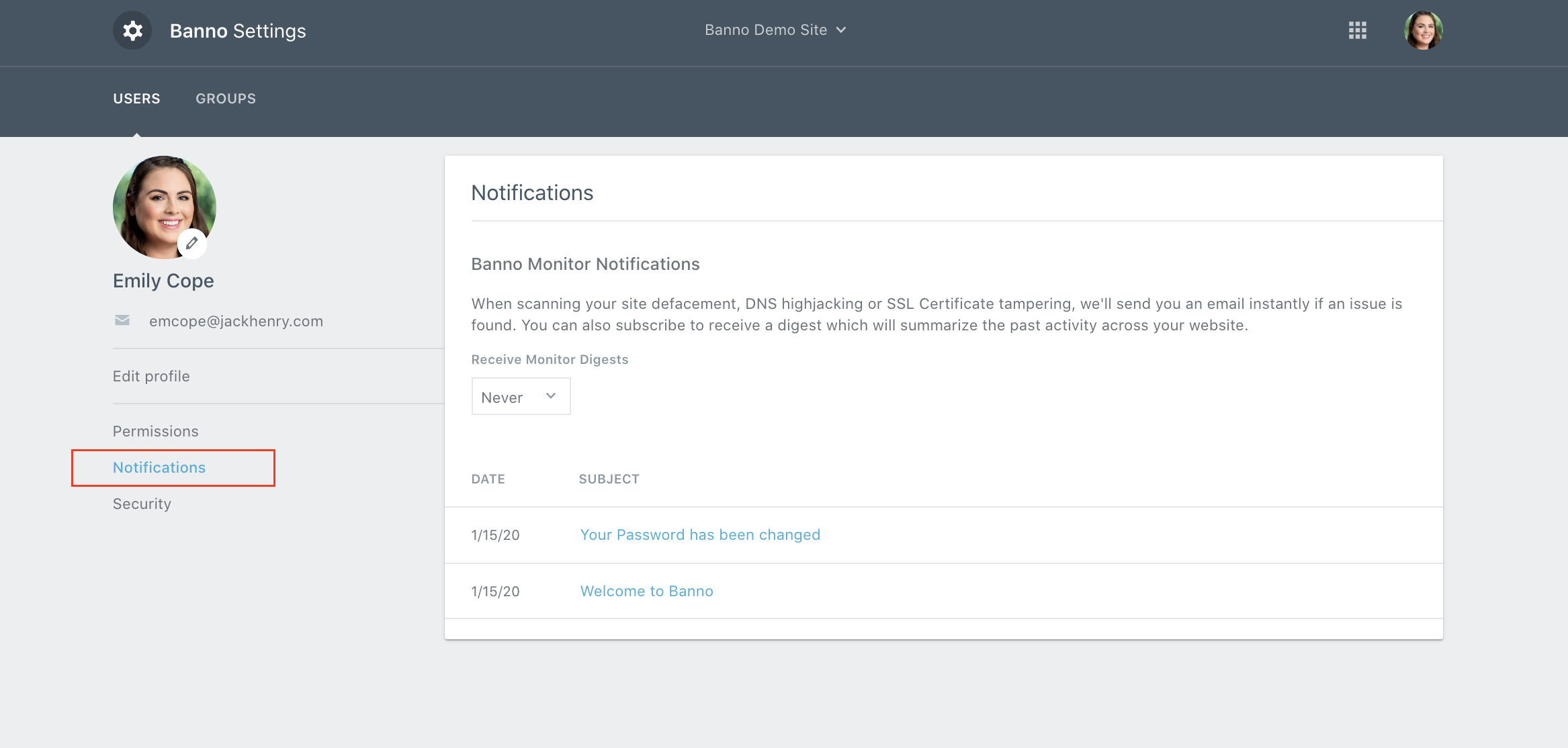
Under the user’s profile (accessible by either going to their profile under “Settings,” or clicking their avatar in the upper right-hand corner and selecting “View Profile”), they can select “Notifications” in the left navigation:
There, the client can set themselves up for Monitor Digests and decide their frequency (daily, weekly, monthly or yearly):
Banno Monitor in the Banno User Guide
Finally, clients can read through our section and related topics on Banno Monitor in the Banno User Guide by accessing the link below:
https://banno.com/a/help/banno-help/GUID-B45CBFE0-ACE8-4D37-9AD2-35FBA245AA5F.html