It’s important to take your PTO, but there are a few steps to taking and reporting that PTO. Luckily, we can help you sort that out.
Requesting PTO
Banno has no unified system for the PTO request itself. Generally, this simply involves telling your team lead with at least a week or two of lead time when you plan to take that PTO, though different teams may have different requirements. But no matter what team you are on, the basic tenants remain the same: be thoughtful, be courteous, and be communicative. Remember anything you have that will be affected by the PTO, such as delivery dates or meetings, and inform your team of any changes that need to be made. Most teams have some form of daily or weekly standup. Be sure to use these to let your team know you’ll be out the week before you take your PTO.
Updating the PTO calendar
After you know you’re taking some PTO, it’s important to update the PTO calendar so your team and any project planning can be informed.
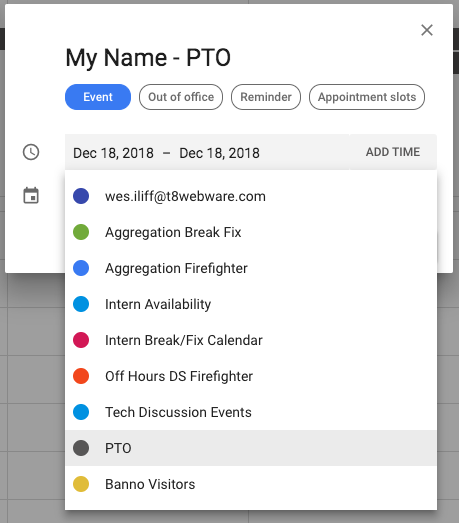
The PTO calendar can be found via the “Add a coworker’s calendar” text box on your Google Calendar. If you cannot find the calendar when you search PTO, you can add the calendar directly:
https://calendar.google.com/calendar/u/0?cid=Y19vZ2diMHYyNmhzbWpxM3BiZjdsOG5hcGwwb0Bncm91cC5jYWxlbmRhci5nb29nbGUuY29t
When you’re ready to add your PTO, simply add a new full-day calendar event containing your name to the day or days in question, making sure you add them to the PTO calendar itself:
Taking your PTO in HCM
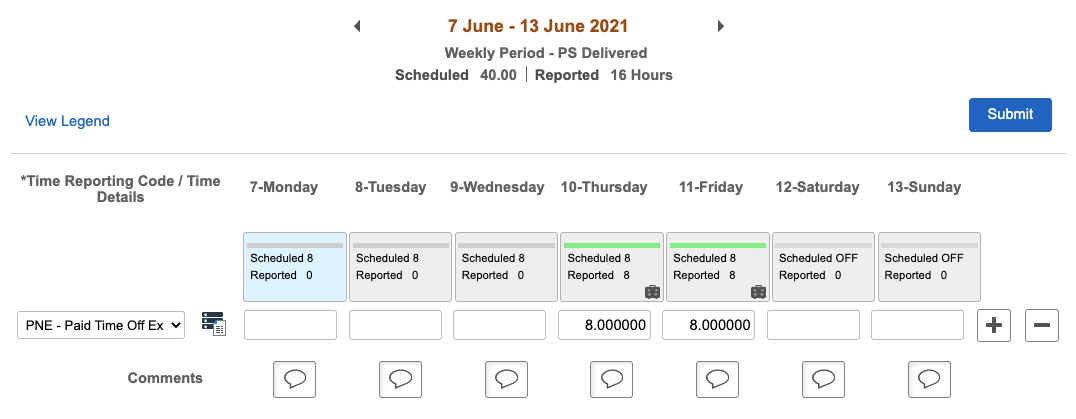
After you take your PTO, you’ll need to make sure you update your hours in HCM. In Employee Self Service, navigate to Time, then Timesheet. Select the date you’re looking to take PTO for, then enter the number of hours you’ll be taking (8 for a full day). Select the code PNE - Paid Time Off Exempt and click Submit. Any paid holidays you are eligible for will already be present on your timesheet. Simply enter your PTO on a different line, leaving the holiday hours and code as they are.