SQL
- Use the SQL automation tool.
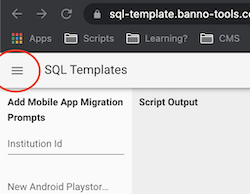
- Once opened, click the menu button in the top left corner to select the template desired.
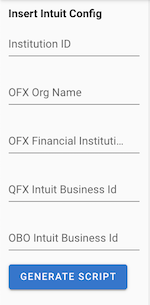
- For this example, the template Insert Intuit Config is used. Once selected, the information that is required for this script populates.
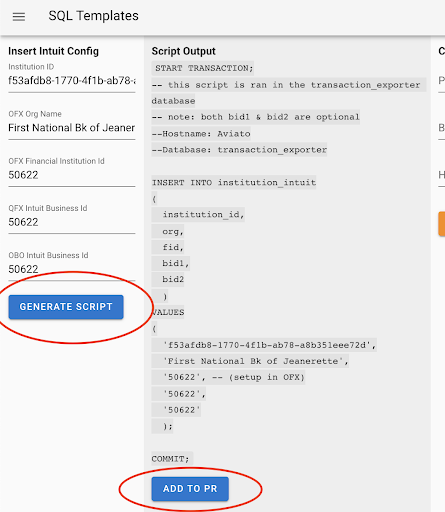
- Input the information, and select Generate Script. The script generates under Script Output. Then, select Add to PR. The information is added to the PR in the far right column. Select ADD TO PR.
- Once ADD TO PR has been selected, in the column to the right looks like this.
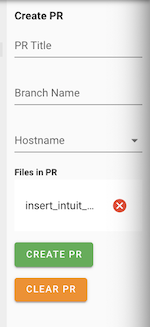
- Within Create PR, add a unique PR Title, including Branch Name, Database, and Hostname. Next, select Create PR, and then GITHUB PR LINK.
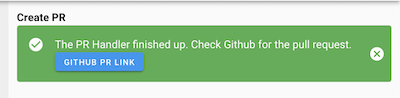
- You’ll be redirected to a Github page looking similar to the PR (pull request) below.
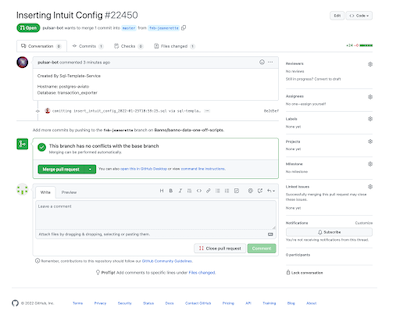
WolfBot
After creating the pull request in Github, post the page link in the #team-ops-prs Slack channel following these guidelines:
- Copy/paste the PR page link into the Slack message box. If you want, you can include a message prior to the link as well, such as Eyes please or One more please. Don’t send it just yet.
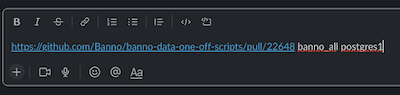
- Following the PR link, include the database.
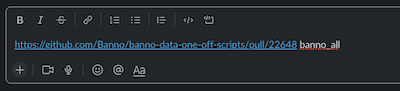
- Following the database, include the hostname. Then send the message in the channel, and wait for approvals.
- After two approvals, the message has two checkmarks.

- Once the PR has two approvals, add the :wolfbot emoji to run the PR in the
#org-bbot-sql-scriptsSlack channel.
- Check out
#org-bbot-sql-scriptsand make sure the script ran. Sometimes there will be a queue depending on the amount of scripts needing ran. A green checkmark indicates the script ran successfully and there were no errors.