Test Credentials Usage
The Test Credential Sheet is a valuable resource whether you’re trying to get a feel for our apps, test out a specific feature, demo functionality, verify bugs, or anything in between. However, the sheet can be pretty daunting at first glance. It’s packed with info, some of which will be probably be completely new to you. That’s why we’re here to demystify the whole experience.
Need to test out enrollment or basic features?
Before you dig in, there might be an easier answer. The new user creation tool lets you create as many test users as you want, using your own authentication methods, with access to basic functionality and enrollment. Ask our new user creation tool guide if this solution is right for you!
Which test FI should I use?
The following image breaks down each internal bank (excluding credit unions) available for use, including which use Production and which use non-Production environments for both NetTeller and jXchange.

What is the credentials sheet?
The Test Credential Sheet contains full user info for every available test user across every test or demo institution we have available. In addition to basic authentication info, the sheet includes links needed to track each user, admin access via Banno People, and information required to reset or change a user’s info.
How is the document organized?
Each tab in the spreadsheet represents a single Financial Institution dedicated to our internal use and testing. Each fulfills a specific role, such as representing a given core or having a specific feature enabled. If you don’t know which institution you need, your best bet is to start with Silverlake Test, as it represents the most common core and configuration settings.
The General Info box
The General Info box is available in the top left corner of each tab, and contains the following basic information about the institution:
- Institution ID
- The internal UUID the Banno team uses to identify this financial institution. Database entries and engineering teams will often use this to specify the institution in question.
- Routing Number
- The routing number used by the FI to facilitate money movement to and from the Financial Institution. This is generally the first number you’ll see on the bottom of a check.
- FI ID Number
- The core’s FI/Bank number. In SilverLake and 20/20, this is set up in JHPAR, in the Bank Information section. Core Director uses the COM222 Program, system control parameter 1.
- NT FI Number
- The four digit NetTeller bank number, which corresponds to the first four digits of the institution’s NetTeller IDs. If a parent/child relationship is present for an institution, there may be more than one of these.
The Links box
The Links box is available in the upper right corner of each tab and contains the links needed to utilize the credentials for each associated account. The following links will be present, if available:
- Online - UAT
- The Banno Online login link for the UAT environment
- Online - PROD
- The Banno Online login link for the Production environment
- Inst Details - UAT
- A link to the Data Services Reporting page for the financial institution, which contains the institution’s database information and access to recent requests to that institution.
- NetTeller
- NetTeller’s online banking login.
- NetTeller Back Office
- A link to the NetTeller back office system for the institution, providing a collection of admin tools through NetTeller’s system.
- iPay MASTER
- The back office site for iPay billpay.
- ESI
- ESI’s back office site.
Retail Users
Retail users are your standard, everyday user. Most tabs will contain multiple users, generally with different use cases, ability, and account combinations. The following fields will be present for Core Banking Retail users:
- Name
- The given name for an account. Usually, these will contain some indication of the use case for the account. For example,
Banno Dormantwould be used for an account that is meant to stay in the dormant status.
- The given name for an account. Usually, these will contain some indication of the use case for the account. For example,
- NTID
- The NetTeller ID for the given user. This is how the user will be indexed in the NetTeller system.
- Status
- The current account status of the given user. This determines the behavior of the app on login. The following statuses are available:
- Active
- An account with recent activity and no restrictions altering normal behavior.
- Dormant (NetTeller Only)
- An account that hasn’t been used in a configurable amount of time, or has been otherwise placed in a Dormant status.
- Locked/Frozen
- An account that has had logins blocked, most often due to excessive invalid login attempts. An analyst can unlock users via NetTeller Back office, In the future, locked accounts will be able to be reactivated via the Banno People admin portal.
- Password Expired
- An account whose password has not been changed in the required number of days. The user will be prompted to change their password on login.
- Password Needs Reset
- An account whose password needs to be reset by the user. The user will be prompted to change their password on login. When a user is unlocked via NetTeller Back Office, they are placed in this status with a temporary password. This is usually the last 4 of the tax ID, but this can be changed via configuration.
- Username
- The username needed to sign into Banno apps and NetTeller, if applicable.
- Password
- The password needed to sign into Banno apps and NetTeller, if applicable.
- Tax ID Last 4 (Temp Password)
- When a user’s password has been reset, this will be the temporary password for that user. Upon logging in with this temporary password, the user will be prompted to set up a new password.
- User - UAT
- A link to the user’s page in Data Services Reporting for the UAT environment, offering information about recent requests and tasks for the user, as well as their database information.
- User - PROD
- A link to the user’s page in Data Services Reporting for the Production environment, offering information about recent requests and tasks for the user, as well as their database information.
- People - UAT
- A link to the user’s overview in Banno People, Banno’s admin portal, on the UAT environment.
- People - PROD
- A link to the user’s overview in Banno People, Banno’s admin portal, on the Production environment.
- CIF (Banks Only)
- The Customer Information File ID, which identifies the record in the core containing the user’s name, address, phone, email, and other details.
- Member Number (CUs Only)
- The Member Number or Account Number is a numeric value assigned to a CU member to identify their membership.
Cash Management Users
Cash Management users are bank only business users, often reflecting a collection of people with access to the same account. Generally, each cash management user tied to a given account will have a different set of entitlements to interact with the account. The following fields will be present for Cash Management users:
- Name
- The name tied to the account. This will reflect the name of the primary account holder (ie, the Company name), and as such will be the same for all CM users tied to a given account.
- NTID
- The NetTeller ID for the given account. This is how the account will be indexed in the NetTeller system. This will be the same for all CM users tied to a given account.
- Status
- The current account status of the given user. This determines the behavior of the app on login.
- Username (SSO)
- The username required to log into the account through Banno’s apps. This will be unique to each user associated with the account.
- Password (SSO)
- The password required to log into the account through Banno’s apps.
- CM Level
- This is a column that definitely contains meaning.
- User - UAT
- A link to the user’s page in Data Services Reporting for the UAT environment, offering information about recent requests and tasks for the user, as well as their database information.
- User - PROD
- A link to the user’s page in Data Services Reporting for the Production environment, offering information about recent requests and tasks for the user, as well as their database information.
- People - UAT
- A link to the user’s overview in Banno People, Banno’s admin portal, on the UAT environment.
- People - PROD
- A link to the user’s overview in Banno People, Banno’s admin portal, on the Production environment.
- CIF
- The Customer Information File ID, which identifies the record in the core containing the user’s name, address, phone, email, and other details.
- CM User ID
- A username for institutions that do not support single sign on, persisted and used by Banno for a handful calls.
- Tax ID Last 4
- When a user’s password has been reset, this will be the temporary password for that user. Upon logging in with this temporary password, the user will be prompted to set up a new password.
How to log in with 2FA
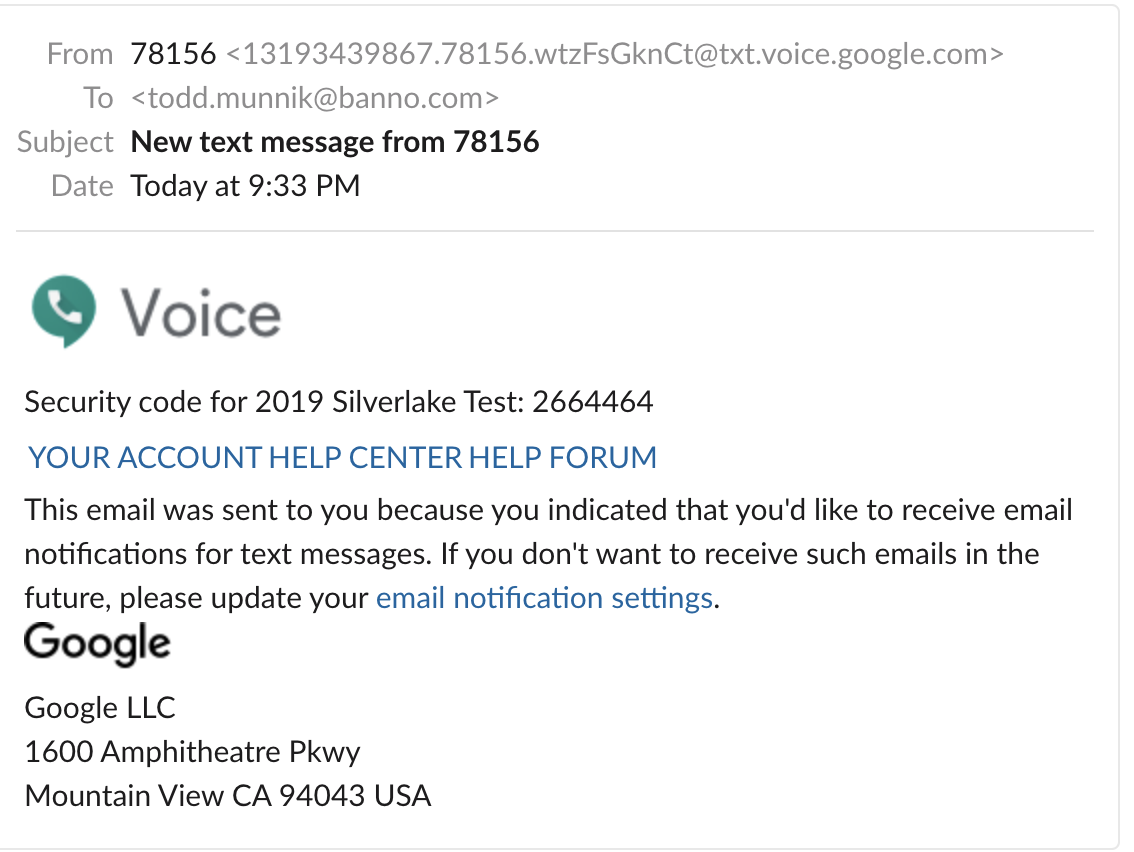
Most test users are already enrolled for 2FA using a phone number (319-343-9867) that routes to the #auto-authy-codes Slack channel. When you try to log in, you will find your code in that channel. If you encounter a user that is not enrolled, you can enroll that user.
After entering credentials, if the user is enrolled in 2FA (and you aren’t using a trusted device) you’ll be presented with a masked version of the enrolled phone number:
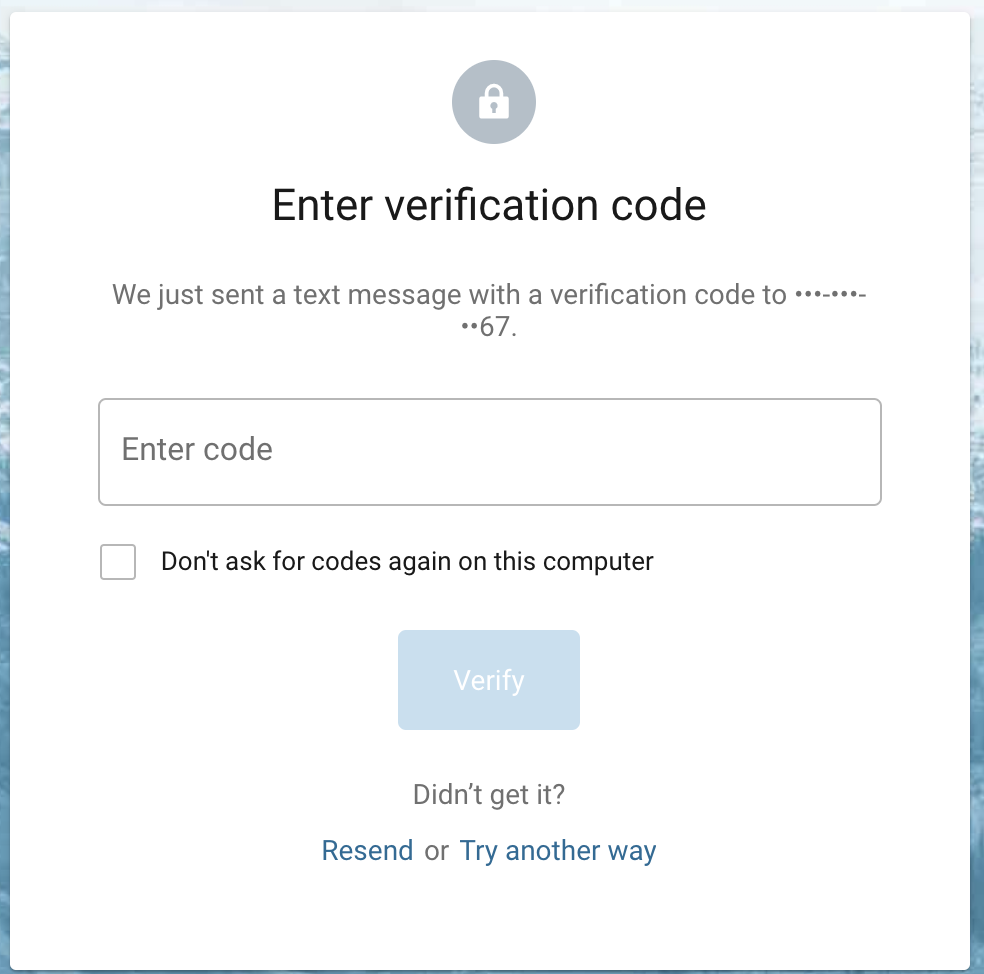
If the masked number doesn’t end in **67, the user was enrolled to a different phone number and may have to be reset before you can retrieve a code.
If the masked number ends in **67, the user is most likely enrolled to the Slack channel. You can obtain the code there:
Resetting 2FA
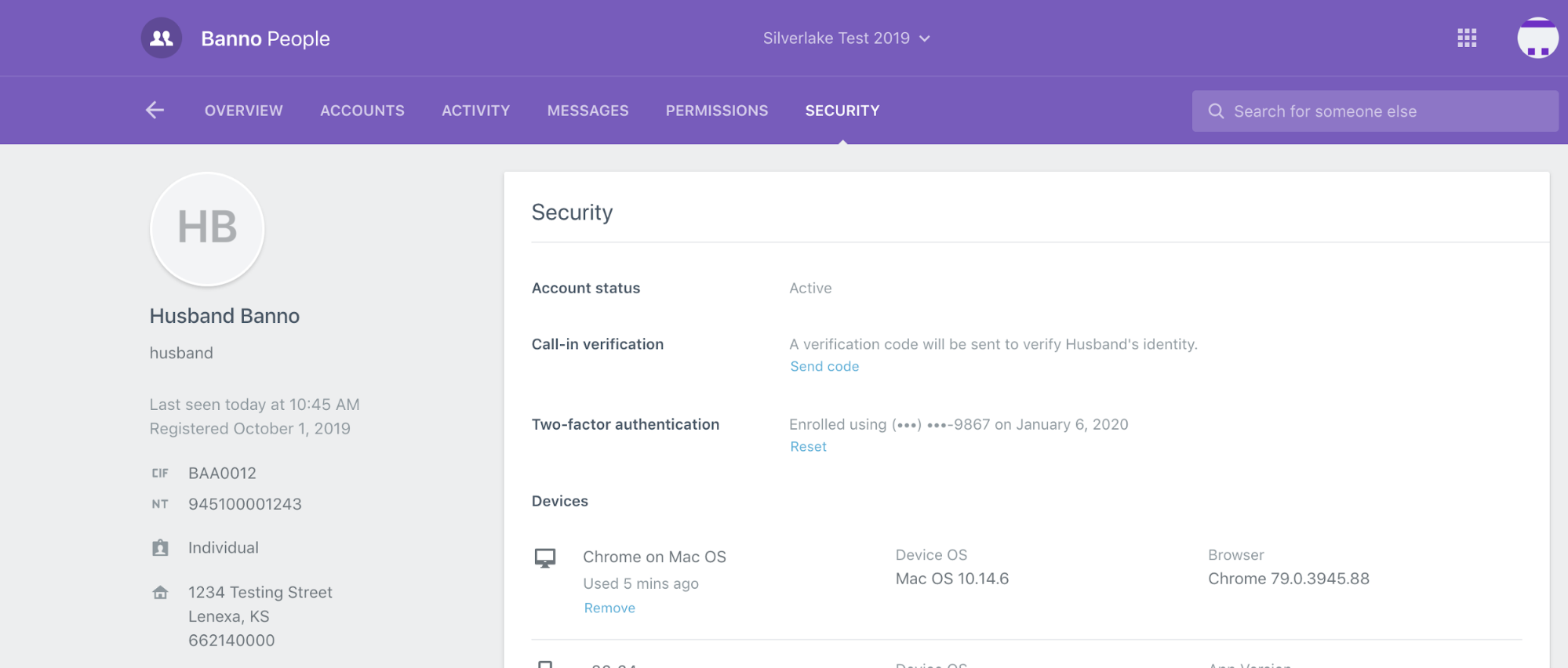
A user’s 2FA can be reset via Banno People, or via the consumer apps if you are already authenticated.
Enrolling in 2FA
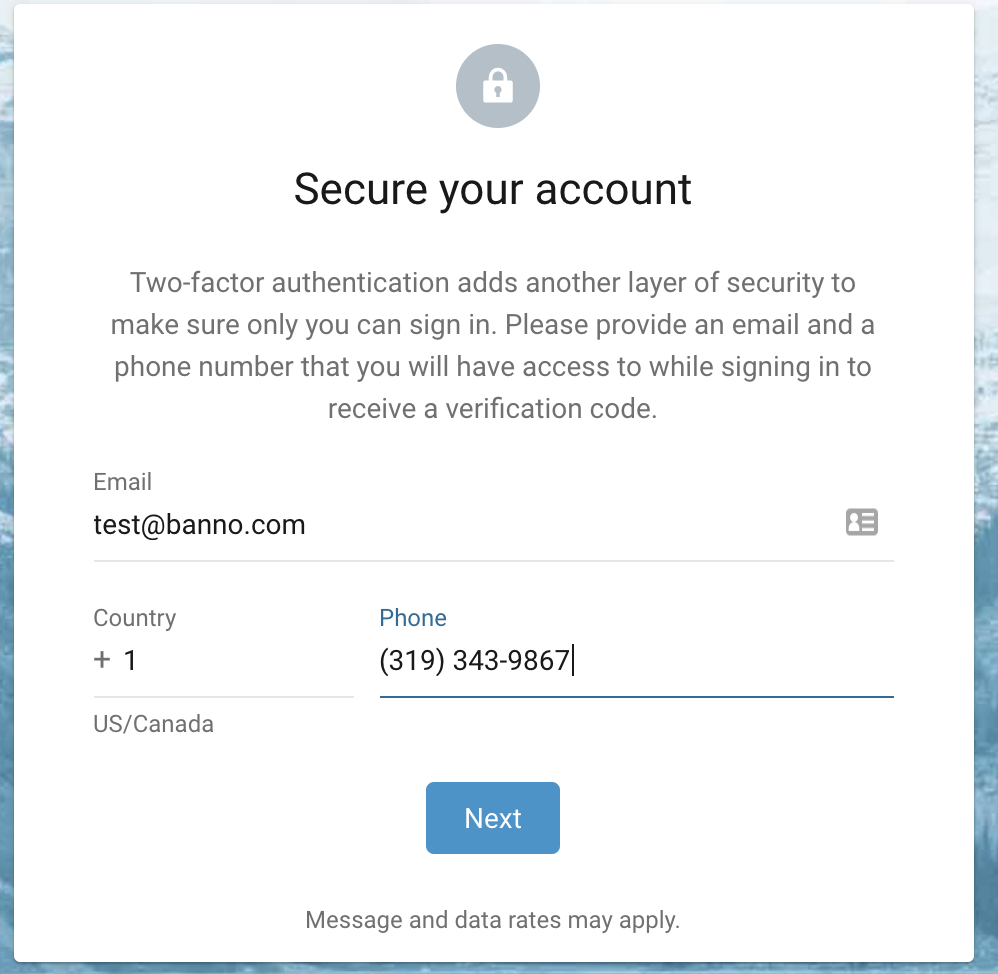
If a user is not enrolled in 2FA, you’ll be prompted to enroll. It does not matter what email you enter, but for test users the Slack #auto-authy-codes number (319-343-9867) should be used.
FAQ
What’s the difference between UAT and Production?
Most institutions have users for two different environments: UAT and Production. UAT (aka thunderdome) is our testing environment, usually including the newest updates, including those not yet live to customers. Accessing a user via Production will use the same version of the apps available to end users.
Users may have different abilities enabled in UAT and Production, leading to unexpected differences in behavior across the same user in different environments.
What should I do if I can’t find a user with the abilities I need? How do I request a new user?
Ask for help creating a user with the required configuration in the #org-analysts Slack channel, If the user might be useful for others, add it to the appropriate tab of the spreadsheet.
What should I do if the credentials for a given user are wrong?
Most commonly the password is what changed. Pull up the user in Banno People, and under Security use the Password reset option to send a link that will allow you to change the password. The link must be sent to the phone or email on the user’s profile, so must users on the Test Creds sheet should have the number/email that allows messages to be sent to a Slack channel where anyone can access it (#auto-authy-codes and #auto-emails).
What should I do if a user is locked out/dormant/isn’t reacting how I expect?
Pull up the user in Banno People, and under Security use the Unlock option. This will put the user back into an Active status, but does not change or reset the password. If you don’t know the password, you can also use the Password reset option.
What should I do if I want/need to change user info?
Changing basic user information, like username or password, is acceptable for most accounts. This might be needed to test functionality, to unlock on account, or to modify an existing test account for a new use case. Most required changes can be done via the apps themselves. However, once you have changed any information present on the credentials sheet, you should update the information back to its original state ASAP.
How do I know what abilities a user or institution has enabled?
The list of enabled abilities for a given FI or user is too large to be contained on the cred doc. Instead, the details can be viewed via Data Services Reporting as linked for each user in UAT or Production by following these instructions. Abilities are also visible (and editable) in Banno People under Config > Abilities. If you aren’t sure whether it’s okay to change an ability (for example, if the feature requires configurations to be done in Banno before it’s enabled so it will work properly, or if the feature requires a non-Banno product or service to be set up and integrated), please ask in #org-analysts before changing the ability. Some features such as MyCardRules will break card management if enabled for an FI that doesn’t support it.
How do I log into Garden?
You can log into Garden via https://digital.garden-fi.com/login.
How are Ovation, Optimus, and Garden different?
Banno Dev Bank, CIF 20/20 Test, Core Director Test, and Episys Test are all set up as internal development/QA environments, including the core and NetTeller pieces. The various Ovation banks, the Optimus credit union, and Garden/Bloom are used within Jack Henry as production sales demo environments that are intended to be more stable than development/QA. Banno uses Ovation or Optimus for testing from time to time, but changes to these FI’s in production should be done with particular care. Garden and Bloom are only set up in Banno’s production environment, and are not configured to work in UAT.