Overview
The firefighter performs issue triage and future version pre-releases. Issue triage allows us to assess incoming customer issue responsibility, assigning to our team if a fix is needed in the application we are responsible for. Pre-release builds play a critical role in validating issue fixes, and previewing upcoming feature work.
Cadence
With the current size of the team, firefighter will be performed by each team member once per quarter. This role only lasts a week at a time. At the end of the week, the role is handed off to the next person. You can see the upcoming schedule in Figma.
Responsibilities
Below are the responsibilities for this role. Please see the dedicated sections for each for more detail about everything involved.
| Activity | Active Time | Passive Time |
|---|---|---|
| Issue triage and monitoring | 15 minutes/day | N/A |
| Pre-release creation | 15-45 minutes | 15 minutes |
| Handoff | 15 minutes | N/A |
Issue triage and monitoring
Issue triage is the heart of this role. With issue triage you are primarily determining whether an issue falls into one of three categories and taking the appropriate action accordingly. You perform triage on the iOS Firefighter Kanban board in Jira. Items in the TO DO column are the issues you should be focusing on. You may also get emails for issues not on the Kanban board, which should also be addressed.
The categories an issue will fall into are:
| Category | Determination | Action |
|---|---|---|
| Valid | Occurs due to the code written on the iOS client, and should be fixed. | Claim for iOS |
| Needs Info | Responsibility for this issue cannot be determined, or needs other team involvement. | Send to Review |
| Invalid | Not caused by the code on the iOS client. | Reject Issue - iOS |
Taking action
On each of the above issues the listed action to take can be found in the actions menu in Jira. For the reject and review options, a comment should also be added to the ticket stating the reason that option was chosen, and directing the support team who else should be engaged on the ticket.
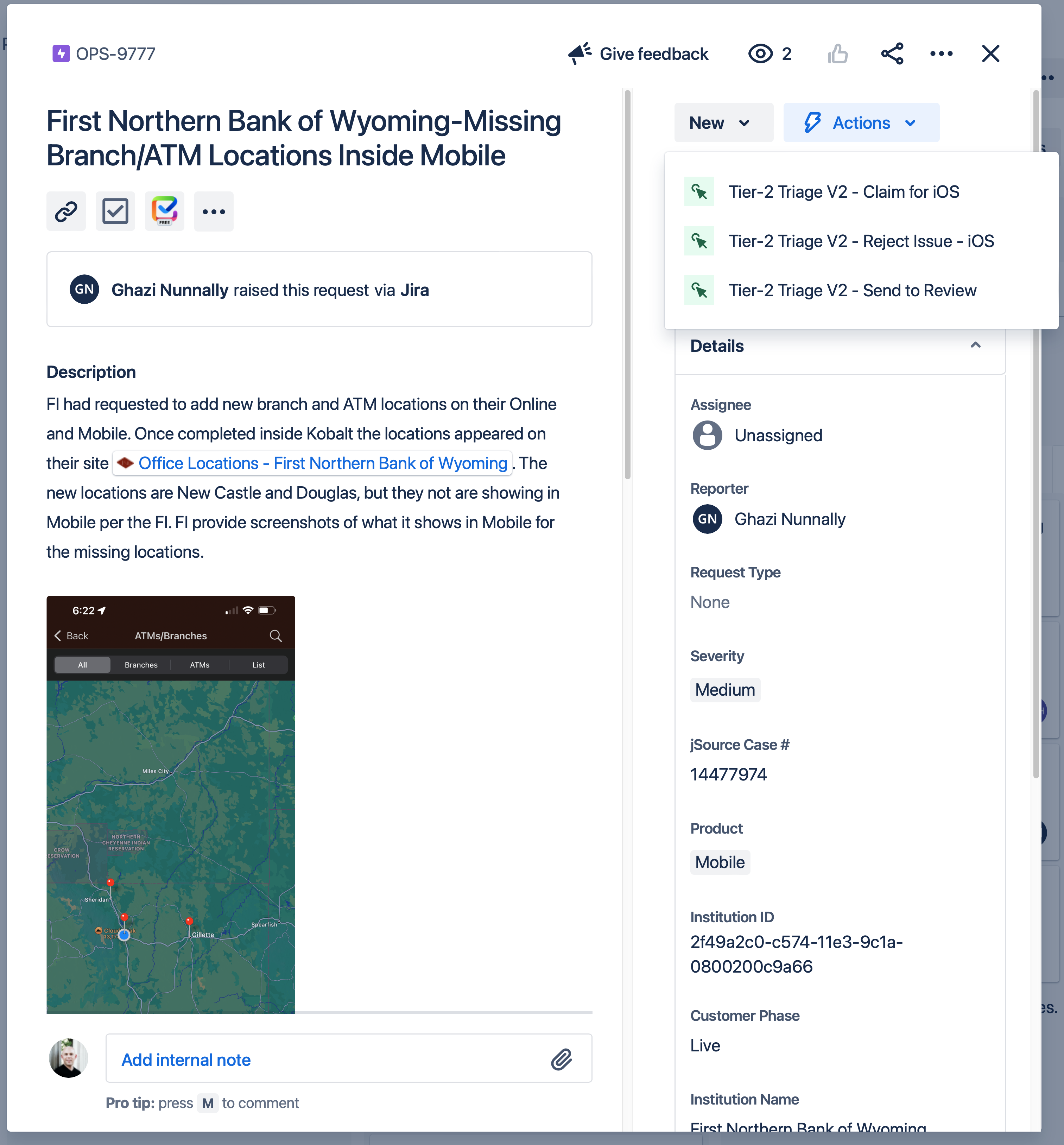
Above: Taking action on a Jira ticket.
Monitoring issues
There are other sources of issues the firefighter should monitor and engage in, which are:
- Pinging the
ios-ffteam in Jira. - Pinging the
@ios-ffgroup in Slack. - Asking a general question in the Slack channels
#org-mobileor#org-reliability-ff.
Pre-release
Pre-releases come in the form of a TestFlight release based off of the current develop branch. Follow the documentation to prepare your machine for making a build. Generating the pre-release build should be done on Wednesday, and can be done at any time.
Handoff
Handoff to the next firefighter is an important part of the process. Since you are only triaging issues, and may be waiting for more informnation, handoff allows you to provide essential context to anyone that might be working on an issue after your time is up. During handoff you should:
- Go over outstanding issues
- Remind the next person where they can find this documentation
- Make the appropriate changes to the Jira ios-ff team.
- Update the members in the
@ios-ffSlack user group:- In the Slack desktop app, open the Go menu and select People & User Groups (⇧⌘E).
- Select the User groups tab.
- Search for
ios-ff. - Click the iOS Firefighter @ios-ff item.
- Click Edit Members.
- Add yourself and remove the person(s) you replaced.
Investigation Tips
When it is not clear if a problem exists in the iOS mobile app, some investigation/communication is usually needed. The customer support process has changed in recent months, and very few tickets enter the pipeline. You should first validate whether the issue is being reported for multiple clients. If so, this is likely either a services issue, or will need a project to fix. For issues that are iOS only, please validate the affected devices are running the most up-to-date version of the application first. After that, determine if you need more information in the form of logs or screenshots. You should also determine whether the reported bug is deliberate implementation or not. Often times customer support is advocating on behalf of functionality a customer does not like, but is intentional. Err on the side of getting more clarification over taking action to claim an issue.
Useful Tools
When trying to determine whether a customer issue is a bug in the iOS app, there are several tools at our disposal.
Testing FI Theme
If we receive a report about a problem related to the FI theme, we can try the theme in a local build of the app. This requires knowing the institution ID, and that is typically provided in the OPS Jira issue. Given that, there are two options:
- Retrieve the current theme JSON and examine it.
- Configure the app source for the institution ID and sign in using the “demo mode” account.
- Configure the app source to apply the theme and sign in to Banno Dev Bank (or another test FI) using the customer theme.
IMPORTANT: The theme is built into each release of the app. If the theme changes on the server (image assets and/or JSON), a new app build is needed for the customer to see the change(s). If the bug report is for an outdated version of the app, the resolution may well be for the reporting individual to update their app installation.
Examine Theme JSON
The quickest option is to perform a GET request to retrieve the FI theme JSON and examine it. This requires knowing what theme keys are of interest and how they interact visually. While this is fast, it demands some imagination and guesswork.
To get started, it helps to have jq installed. This is available using Homebrew and via other means:
brew install jq
Then, the GET request can be performed using cURL:
curl -k "https://api.banno.com/v0/institutions/<institution-id>/themes" | jq > theme.json
This will produce a nicely formatted file called theme.json.
Run App in Demo Mode
There is a special username that starts with bannogriptestuser that can be used with any FI. Any additional characters can be applied after bannogriptestuser if so desired. This is what we provide for App Store review so that the reviewer at Apple can sign in to the app. It is utilized in this way:
- Enter
bannogriptestuserfor the username. - Enter any password.
- When prompted for a security question, enter any answer.
Behind the scenes, the server maps everything to the Artemis Bank test FI, a precursor to the YourFI institution. The received user-specific institution abilities will almost certainly not match the actual customer FI.
TIP: It is typically best to create a new Git worktree (or a new repository clone) to do this. Doing so will reduce the likelihood that any cached state will interfere with applying the customer theme. Furthermore, it is easy to remove a Git worktree so that applying the customer app details does not interfere with any active development.
To apply the customer theme, including image assets, the easiest option is to run the following from the root folder of the banno-ios repository clone:
./Build/apply_institution.py --production <institution-id>
When building the app, the customer theme will get applied automatically as part of the build.
Apply Customer Theme to Banno Dev Bank
The demo mode option is sorely limited in what features are reachable. What can deliver a better outcome is applying a customer theme to a local build of Banno Dev Bank. In this way, we can test with features we expect while changing only the visual appearance.
TIP: It is typically best to create a new Git worktree (or a new repository clone) to do this. Doing so will reduce the likelihood that any cached state will interfere with applying the customer theme. Furthermore, it is easy to remove a Git worktree so that applying the customer app details does not interfere with any active development.
- Run the following from the root folder of the
banno-iosrepository clone:
./Build/apply_institution.py --theme-only <instituiton-id>
- Build and run the app.
When finished, the Git worktree (if used) can be deleted. Otherwise, it will be necessary to undo local changes to the theme files and the image asset catalog.
NOTE: This can be a confusing experience. The app will have the full appearance of the customer theme, but it will be using Banno Dev Bank on UAT.
Finding Crash Reports
Using Datadog
An amazing amount of information is available through Datadog, but it may be difficult to interpret due to the logging being intended more for the services engineers. We have set up a service to monitor iOS related events called banno-ios. Your data can be filtered to search only this service by utilizing the service parameter shown in the table below when you run a query. With some practice, information from Datadog can help inform a guess about the cause of a problem observed on the client side until logs become available.
The basic steps that have worked in the past are these:
- Sign in to Datadog. Alternatively Datadog can also be accessed from the Okta dashboard. Trying to sign in through the default Datadog login page does not work for us.
- Use filtering and date ranges to find server activity.
TIP: We have a recording showing some client-oriented use of Datadog that is well worth watching. The Chrome browser extension shown in the recording streamlines some common Datadog usage.
Most customer issues include a user ID. With that and a date range, that can narrow down log activity quickly. The date range is often based on guessing unless the reporting user supplied a time (with a time zone, ideally). What makes things more confusing is that Datadog shows dates in your local time zone. App log files, on the other hand, record activity using UTC. Sometimes, the date range has to be broad at first and then get narrowed down after filtering results.
There is a dashboard for iOS team use that can help simplify the process of finding relevant information.
There are some extremely helpful facets that make filtering and searching far easier than in the past. The table below gives some recommendations.
| Field | Value | Notes |
|---|---|---|
banno.user.id | User ID from the Jira ticket | Shows results in the date range associated with the reporting user. |
banno.request.method | GET, POST, etc. | Shows results in the date range that match the HTTP request method. |
banno.request.sanitized_url | Endpoint path with * replacing identifier(s) | Shows results in the date range for the identified endpoint. |
banno.request.x_request_id | request_id value from app log output | Shows the activity associated with the given request ID. |
service | banno-ios | Shows results from the banno-ios service only. |
usr.id | User ID from the Jira ticket | Shows results in the date range associated with the reporting user. |
usr.institutionId | Institution ID from the Jira ticket | Shows results in the date range associated with the reporting institution. |
There are many, many more facets available for creating a filter. Some experimentation and practice could reveal more effective ways of searching.
Shown below is the DataDog Log Explorer. This is where a majority of querying logs will take place. Marked with red arrows are points of interest for navigating to the Log Explorer as well as necessary points for completing a successful log query.
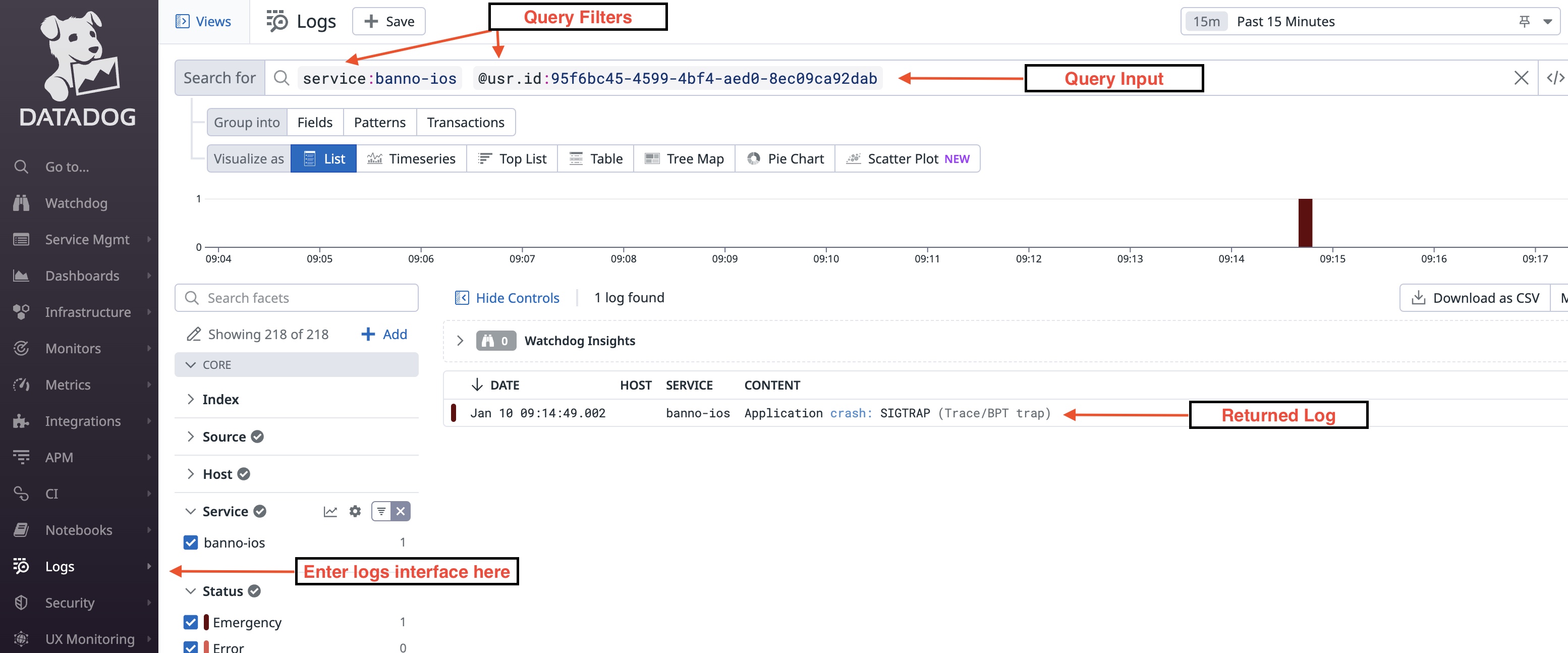
Above: An example of querying logs within DataDog.
Enter logs interface hereis the entry point to the Log Explorer from the DataDog homepage.Query Filtersare search parameters used to filter the logs.Query Inputis where queries are entered. This section contains numerous tools for filtering outside of what is mentioned here. For more details refer to the Log Search Syntax documentation here.Returned Logis the payload returned after applying the filters shown in the example.- All queries will return their payload to this section.
- An individual log will contain sections including event attributes being monitored and a JSON payload for that issue.
- Data points within the JSON payload can be used for further querying if necessary.
For more information on searching logs see the DataDog documentation here.
Using Data Services Reporting
The Data Services Reporting tool (formerly known as fetch-reporting) provides access to a lot of information about users, task events, and other things that can be helpful when investigating bugs. When a user cannot or will not submit logs, for example, we can still infer things based on information from DS Reporting.
Using Jabberwocky Health
The Jabberwocky Health tool provides a nice interface for getting a lot of information about bill pay.
Tools
We have tools available to examine current user data and past task events. These require being on the Jack Henry VPN.
- Be aware of team domain ownership.
- Read the API reference. Without understanding what the Banno API can do, it is extremely difficult to diagnose issues related to data and API interaction. Every full-time engineer on the iOS team is expected to understand the Banno API.
- Learn to use Data Services Reporting. This provides a massive amount of insight into many server-side things, including institution abilities; user-specific ability overrides; and task event content.
- Learn to use Jabberwocky Health. This is helpful for problems related to bill pay.
- If during troubleshooting an issue you need to see the data for a customer use Banno People or the
eauth tokenfrom yourBanno Peoplesession Instructions on querying the API. Note you may need to work with ops to get access to the FI in production. - You can use Datadog to query and view recent API request. This can be helpful when device logs are not (yet) available.
- Other infrastructure tools
- Okta details