What is Company Portal?
Company Portal is a Microsoft application that ties a Mac to Jack Henry’s Microsoft Endpoint Manager. This connection is required in order to access any resources that have conditional access enabled, the most relevant of which are Microsoft Teams and jhDaily.
How to Enroll in Company Portal
Make sure you have your JH credentials (bmoose@jhacorp.com) and Okta configured before you begin.
Note: It is VERY important that this be run from inside Self Service+. DO NOT open Company Portal directly from Launchpad, your Dock, or the Applications folder in Finder.
- Open the Self Service+ application. Click Browse, followed by Digital - New Mac in the sidebar
- Find the item named Enroll In Company Portal, then click Enroll
- The Microsoft Company Portal application will launch automatically. Click Sign in
- At the sign in screen, enter your @jhacorp email address, then click Next
- You will be redirected to the JH login page. Enter the password for your @jhacorp account, then click Verify
- If asked, select a security method. Enter the appropriate Okta code, then click Verify
- You will see “Registering your mac…” followed shortly by “You’re all set!” and finally a Done button.
- Click Done. The Company Portal window will close automatically
- A few windows may flash briefly, then close. This is expected.
You may need to wait up to 15 minutes for everything to populate and sync on both sides. If you’re still prompted to enroll when trying to access JH resources after 1 hour, DO NOT try to enroll directly - come ask in #org-ground-control
Troubleshooting
Problem: “Set up your device to get access” or “Device Registration Disabled” Error
After attempting to log in to a website or app, one of these error messages appears:
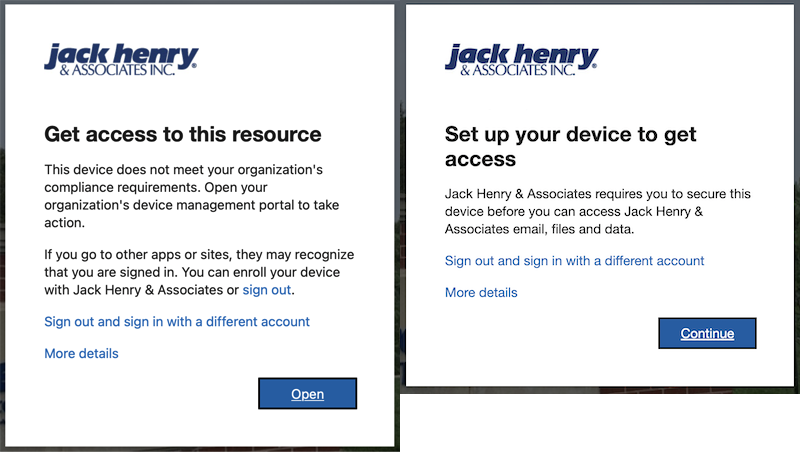
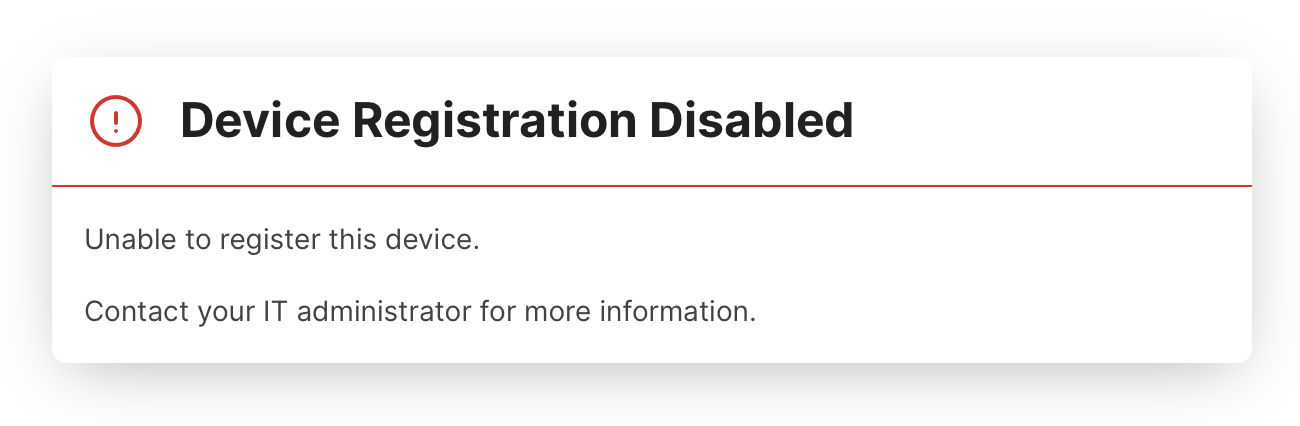
The easy fix: Try to quit and re-launch your browser. Alternatively, try to access the site in a private window, or a different browser. If that does not work, keep reading.
Cause 1: Your browser does not have access to the workplace join key.
Solution: DO NOT click continue. Close the window, then follow these instructions:
- Open the Keychain Access app. Located at
/Applications/Utilities/Keychain Access.app - Search for
Microsoft Workplace Join Key - Double-click on the private key to open up preferences.
- Select the Access Control tab.
- If you do not see Google Chrome (or your primary browser) listed, click the plus icon to add it.
- Quit and re-launch Google Chrome (or your primary browser).
- If you do see your primary browser listed or these steps did not work, continue to cause 2 below.
Cause 2: Your device is not properly registered with MEM.
Solution: DO NOT click continue. Close the window, then follow these instructions:
- Open Self Service+. There should be a button labeled
Fix Teams/jhDaily.It looks like this:
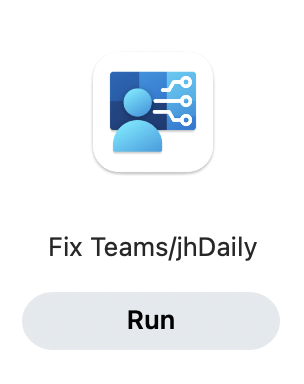
- If you do not see this item, try clicking Update Inventory first, then close and re-open Self Service+. If you still do not see this item, then you likely have a different problem. Find us in #org-ground-control on Slack so we can investigate further.
- Wait 5-10 minutes and try accessing the blocked website or app again.
- If you receive the same error again, follow the instructions listed above to enroll in Company Portal.
Problem: Your browser is asking for a certificate or the Microsoft Workplace Join Key
You may come across these pop-ups when using Chrome or any third party browser.
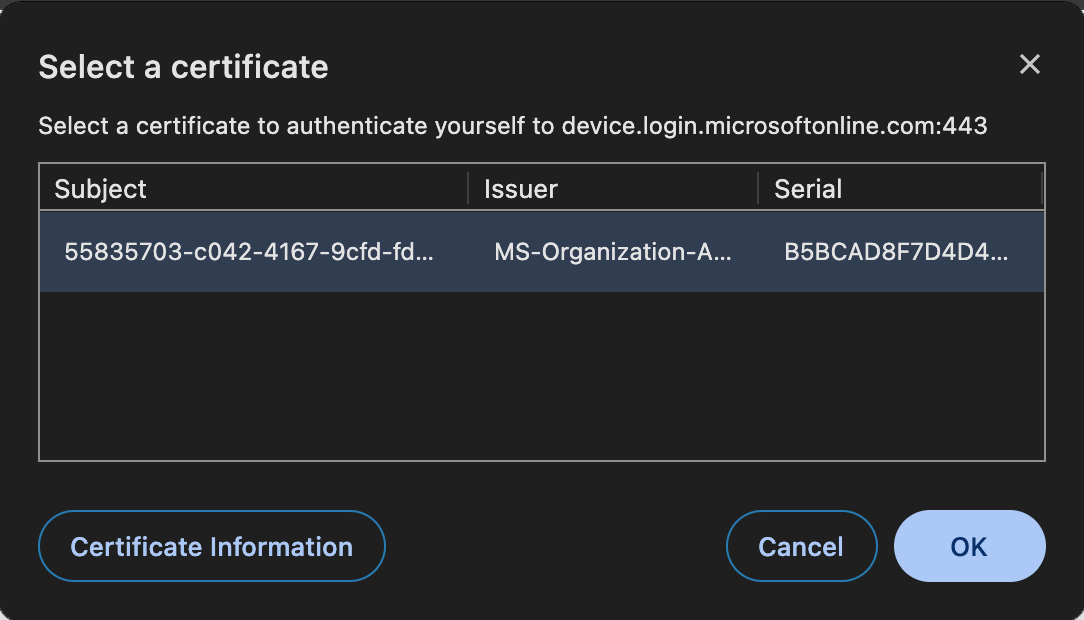
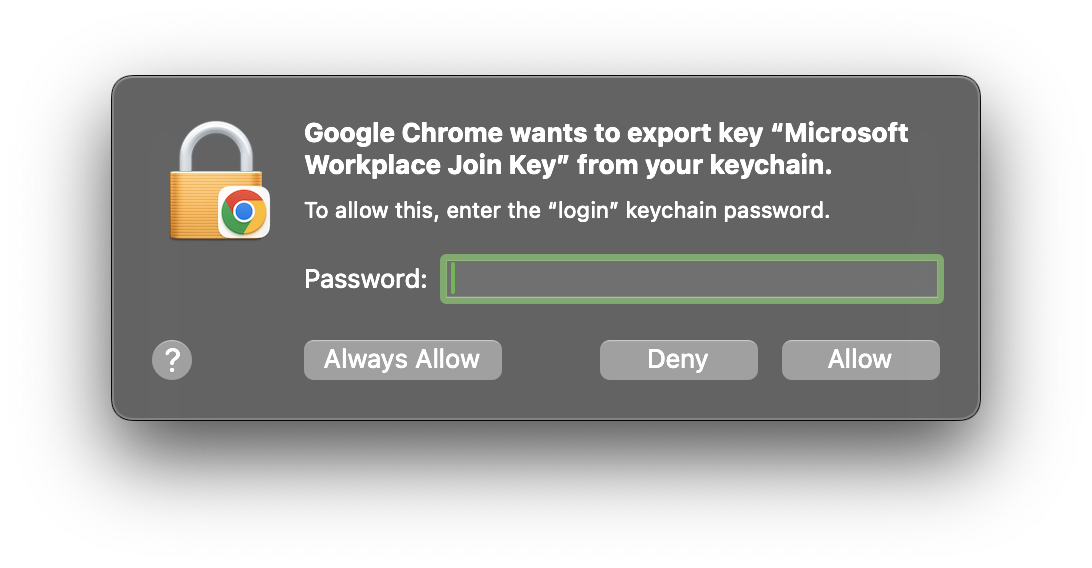
Solution: Select the certificate and click okay. Then enter your local Mac password and click Always Allow (not just Allow).
Problem: “Your organization requires you to enroll this device with a different device management provider” Error
After launching Company Portal and attempting to log in, this error message appears at the bottom of the Company Portal window:
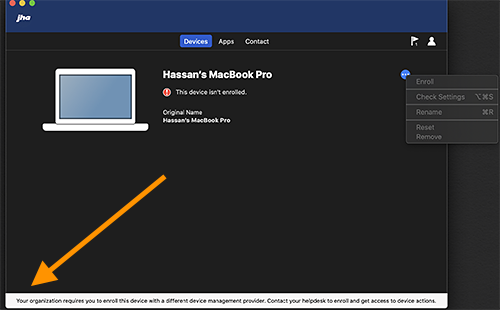
Cause: On a machine that is configured with Jamf (all machines deployed after May 1, 2020), Company Portal cannot be opened directly and must be launched via Self Service+
Solution: Quit the Company Portal app and follow the instructions listed above to enroll in Company Portal.
Problem: “Helpdesk support required: Your organization needs to enable partner device management for you before you can enroll” Error
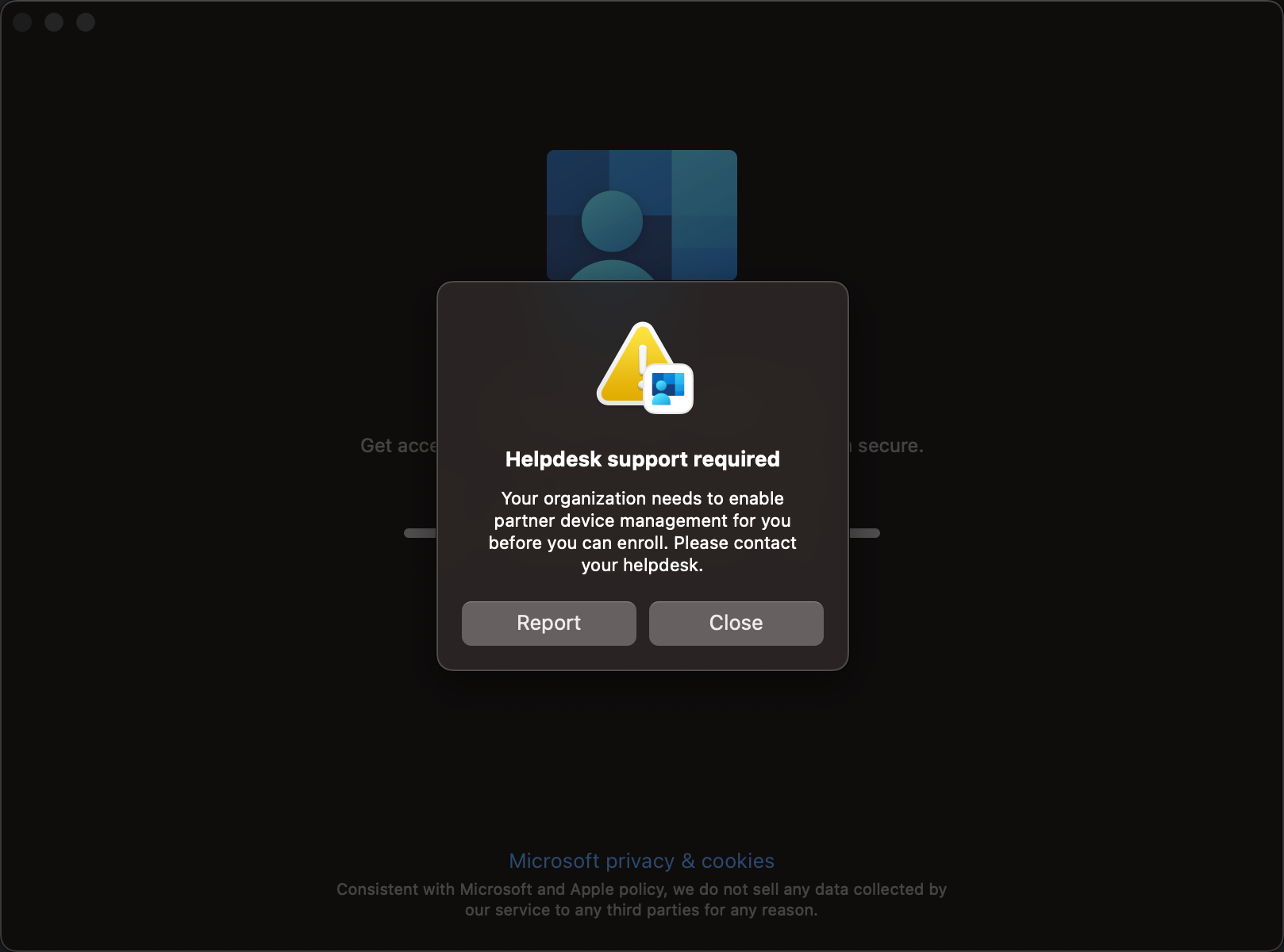
Cause: Some Active Directory security groups block enrolling in Company Portal. Your user account is likely a member of one of these groups.
Solution: The Help Desk needs to remove your @jhacorp account from the offending group in MEM. One of the common culprits is Office of the CTO-Common Shared Services Dev but there may be others. Some investigation may be required in order to identify the correct group. Please contact the help desk as Ground Control does not have access to edit AD group membership.
Problem: “Company Portal temporarily unavailable” Error or you are unable to register after several attempts
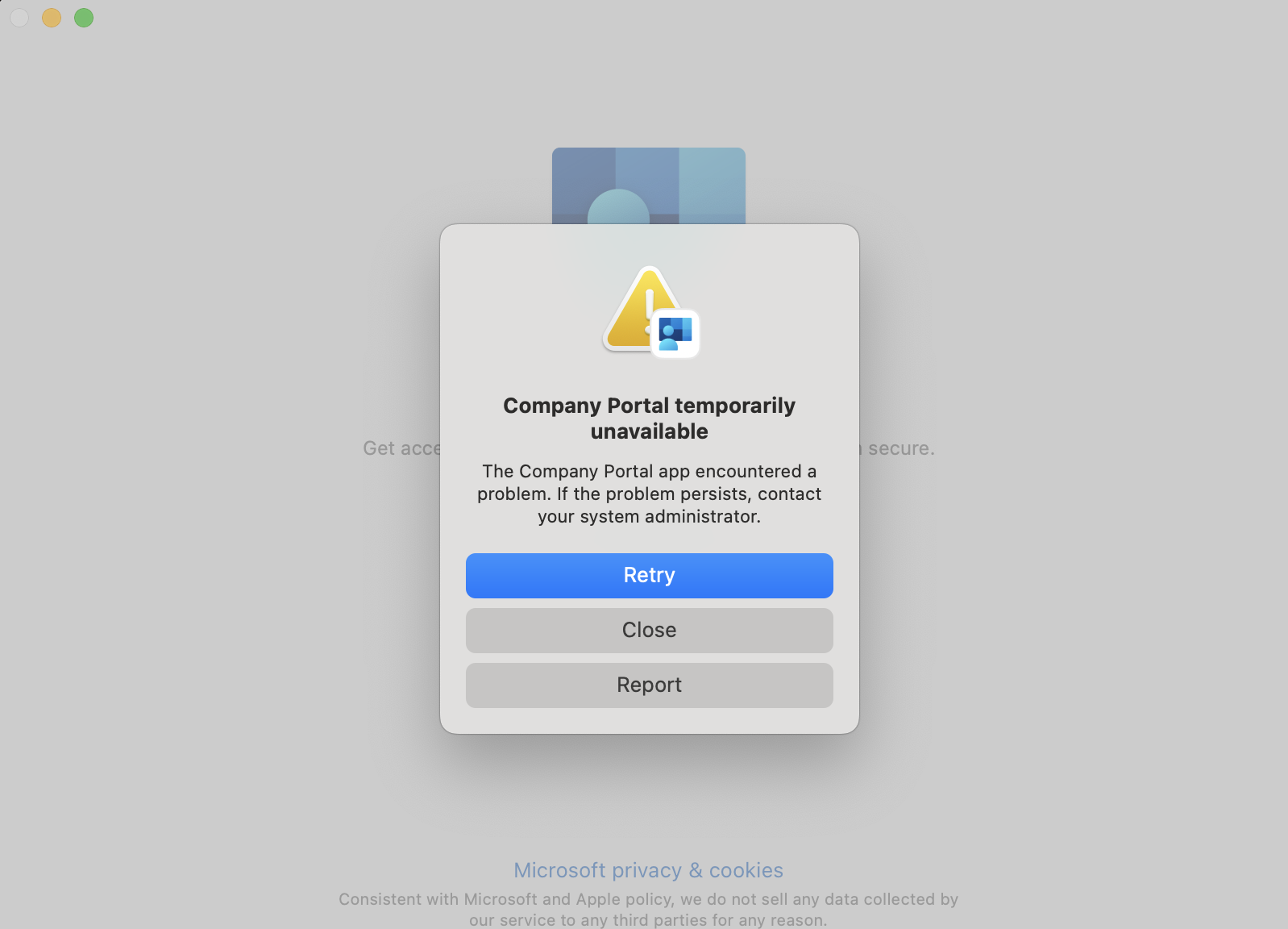
Cause: You may be using Okta fastpass (Touch ID) to sign in.
Solution: When registering with Company Portal, you must utilize your @jhacorp username/password and Okta OTP. Any other authentication methods are likely to fail.
How to Re-Enroll in Company Portal
Occasionally company portal enrollment will fail for any number of reasons. If you need to re-enroll in Company Portal, follow these steps:
- Contact
org-ground-controland explain your issue. (We may be able to help without doing a full re-enroll). - A member of Ground Control must remove your device from Microsoft Endpoint Manager (MEM) prior to completing any other steps.
- Confirm with
org-ground-controlthat your device has been removed before moving on to the next step!
- Confirm with
- Open Self Service+ and navigate to Browse > Digital - Utilities
- Select the policy named Clean Company Portal Settings then click Clean
- Open the Keychain Access app located in
/System/Library/CoreServices/Applications/- Search for any Microsoft Session Transport Key items and delete them.
- Search for any com.microsoft.CompanyPortal.enrollment items and delete them.
- Restart your computer.
- Follow the instructions listed above to enroll in Company Portal.