SauceLabs
Our SauceLabs account allows us to create a virtual session for any OS+browser combination. After logging in, click on the “Manual testing” option. Manual tests do not count toward our billed time.
If you want to test a website running on your machine (localhost), you will need to download and run a Sauce Connect tunnel during your tests.
Note: We use a shared login for SauceLabs. Ask another team member for the credentials.
Test in iOS Safari via XCode Simulator
An iOS Simulator is available with XCode. You can install XCode from the App Store.
Open XCode and go to Xcode -> Open Developer Tool -> Simulator. The iOS Simulator app should open.
You can change the simulated device from the Hardware -> Device menu.
To enable Safari debugging, open the device settings (Settings on the home screen) and enable Safari -> Advanced -> Web Inspector.
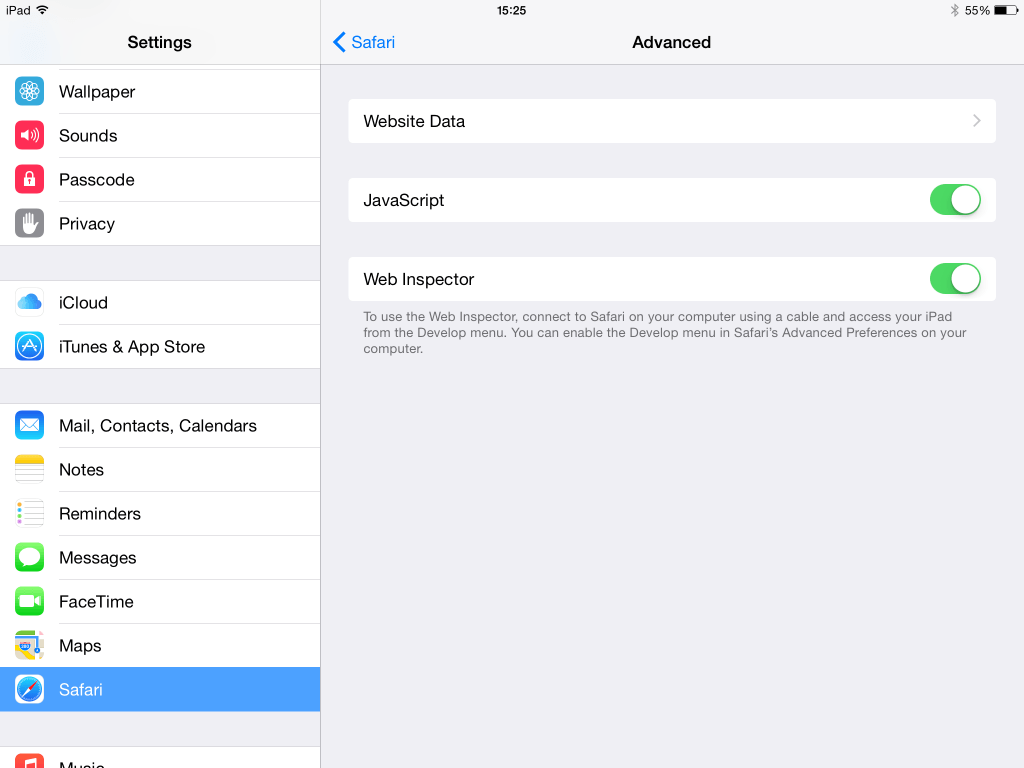
Open Safari in the simulator and go to the webpage you want to test.
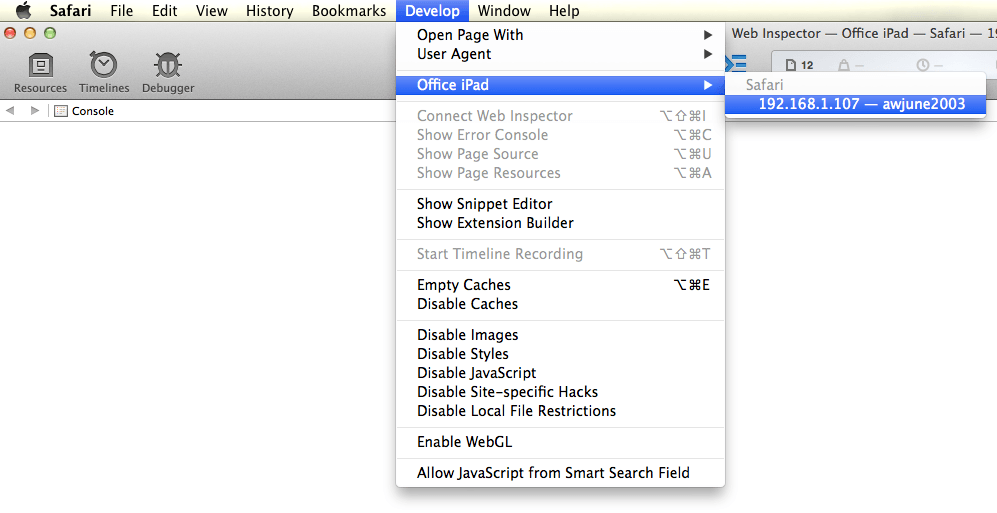
Open Safari on your desktop and go to Develop -> Simulator -> [the webpage]. A special Web Inspector window should open for the simulator’s Safari.
Tips:
- Be sure to install the latest version of XCode to get the latest simulator devices.
- Use ⇧⌘H in the simulator to return to the home screen.
- The Develop menu must be enabled under desktop Safari (Preferences -> Advanced -> “Show Develop menu in menu bar”).
- If the simulator is not appearing under desktop Safari’s Develop menu, try closing & reopening Safari, or disabling & re-enabling Web Inspector in the simulated device.
Test in Windows via VirtualBox
Download and install VirtualBox
Download a suitable VM image. These are really large. The Win 10 - Edge image is around 4.5gb. If you can’t unzip the downloaded image, use the unarchiver.
Get the machine setup in VirtualBox. Setup the networking adapter to use the “Bridged Adapter”.
Find the local ip address of your mac (typically, a 192.168.x.x address)
Boot up your windows VM, and then edit the hosts (as administrator) file on windows and point ‘dev.local’ to your mac’s ip address. Save the hosts file and open Edge and point it to https://dev.local:8443 (skip past the certificate warnings)
An alternative that allows you to use https://localhost:8443 is to create a port proxy on the Windows VM by executing the following from a command prompt (as Administrator):
netsh interface portproxy add v4tov4 listenaddress=127.0.0.1 listenport=8443 connectaddress=192.168.x.x connectport=8443Where 192.168.x.x is the address of your Mac.
Note: The images from Microsoft will eventually expire. When it expires, your session is limited to 30 minutes before the VM will shut down. However, your configuration changes will not be reverted.